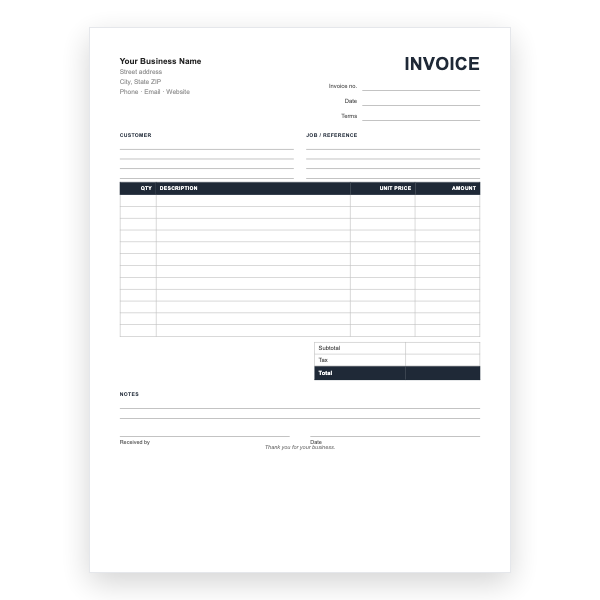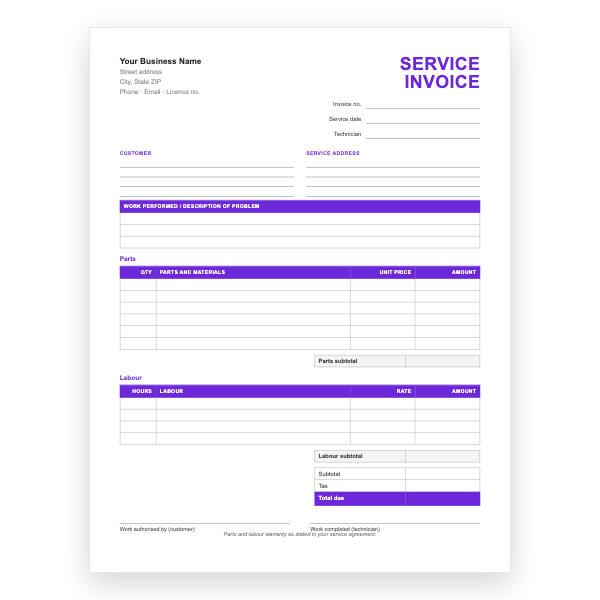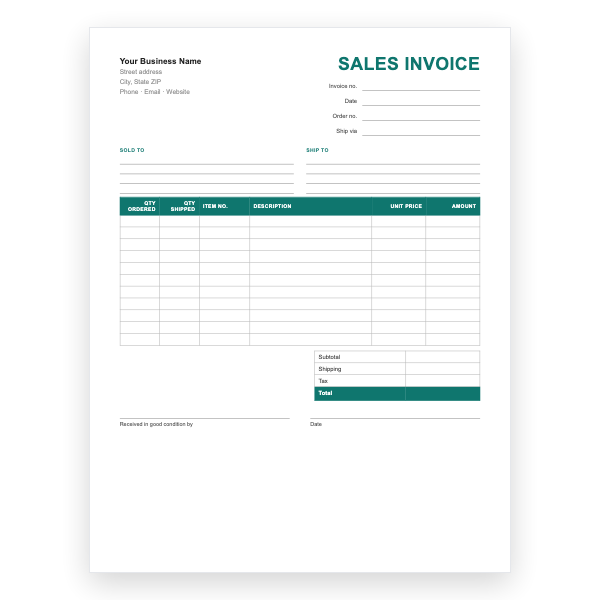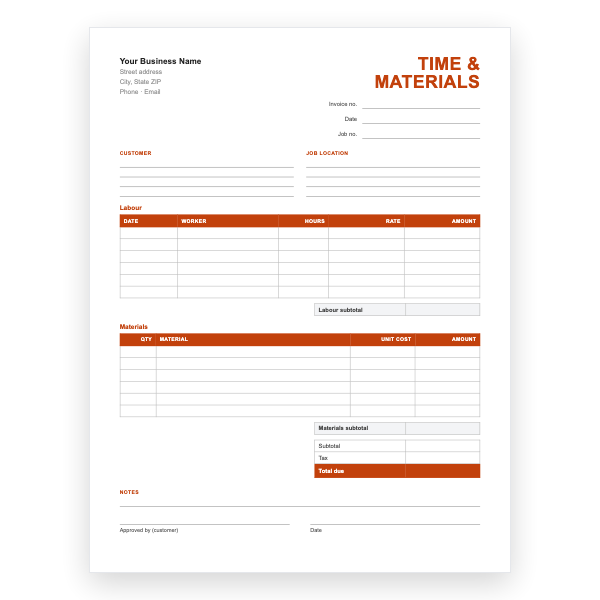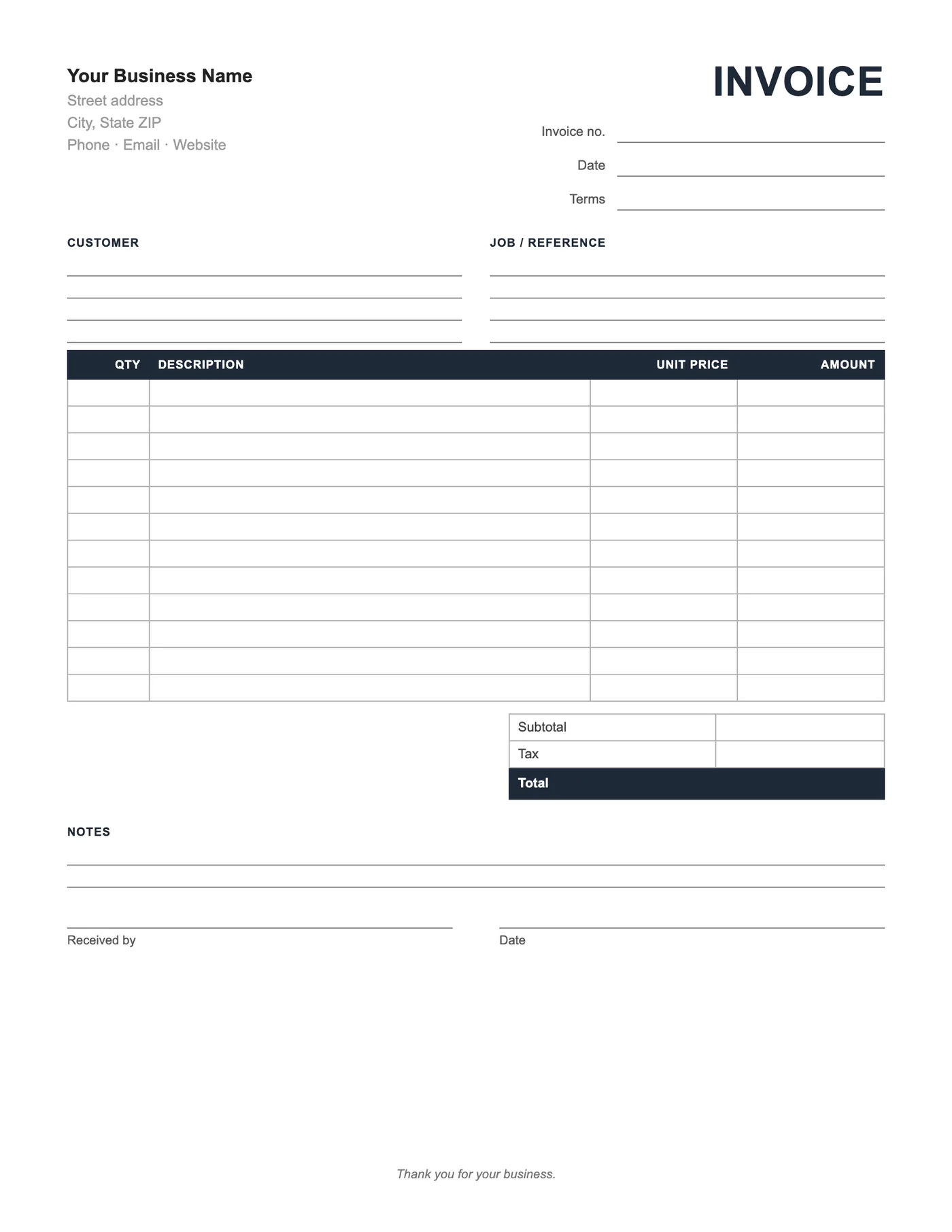
How to use it in Microsoft Word
- 1
Download the .docx file and open it in Word. If a Protected View bar appears, click Enable Editing.
- 2
Click the logo placeholder, delete it, and insert your own image. Type your business details into the header.
- 3
Fill in the Billed To block, the invoice number, and the date of issue.
- 4
Type each line item into the table. Press Tab in the last cell to add a row.
- 5
Work out the subtotal, tax, and total and type them into the totals column.
- 6
Choose File, Save As, and pick PDF. Send the PDF, not the Word file.
Brand it, then print it
Type your business name, address, and phone number over the placeholders at the top, add a logo if you have one, and save. From then on every printed copy carries your details and only the job needs writing in. Export a PDF for a copy shop if you want pads made.
Or type it all
The same file works as an on-screen invoice. Click into any ruled line or table cell and type. Word does not add up the figures, so use the Excel version of this form if you want totals calculated.
Tips
- Save a branded master before you fill anything in.
- Print a test page to check the ruled lines suit your handwriting.
- Ask the print shop for sequential numbering on pads.
Questions about this template
Will the ruled lines print?
Yes. They are paragraph borders and table borders, which print everywhere.
Can I add more rows?
Yes. Click in the last row and press Tab; the borders carry over.
Is there a PDF version?
Yes, the Invoice Form PDF is the same layout, ready to print without editing.