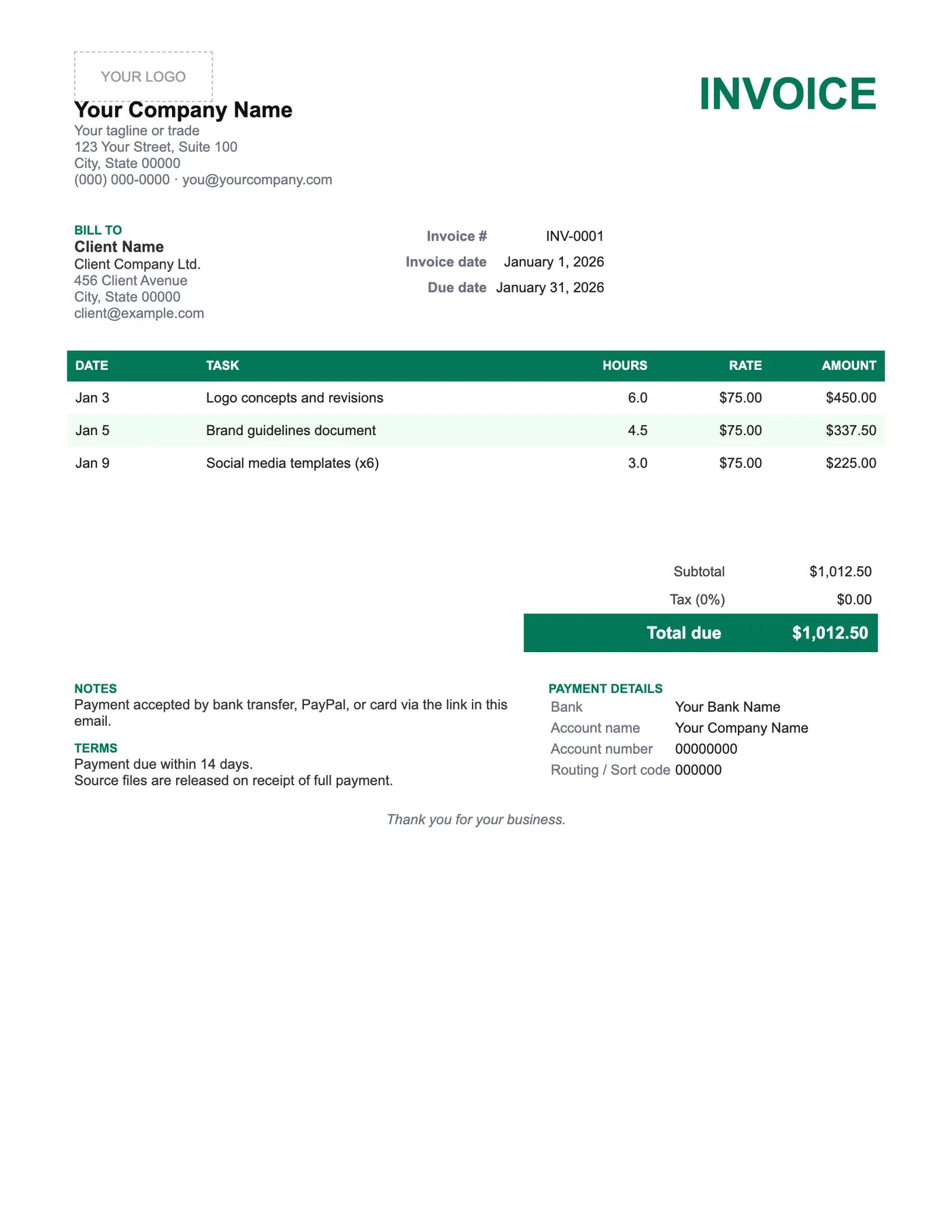
How to use it in Microsoft Word
- 1
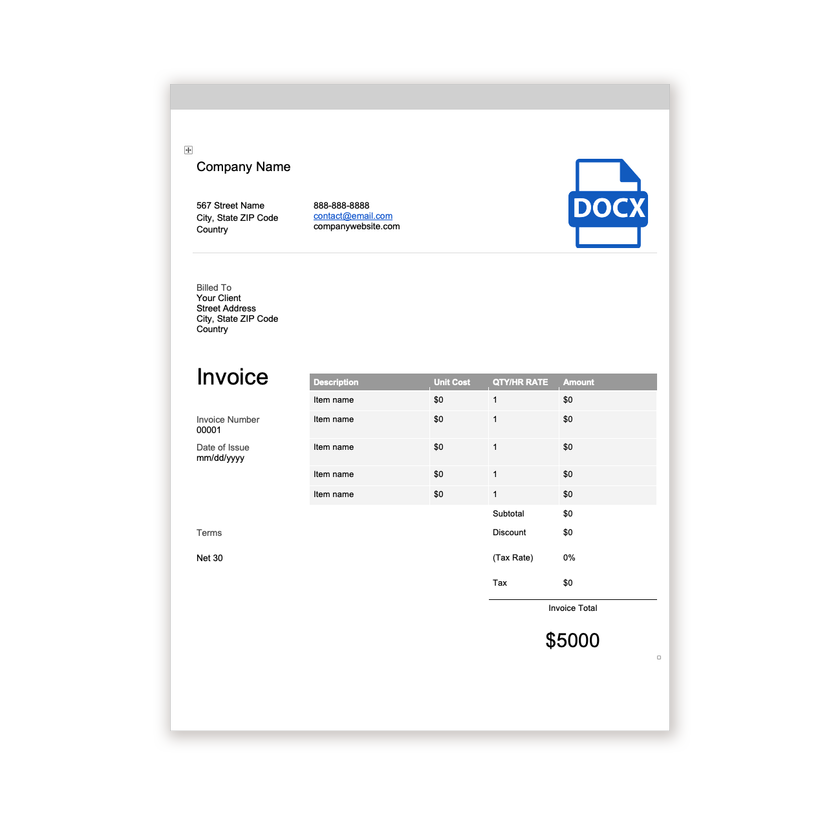
Download the .docx file and open it in Word. If a Protected View bar appears, click Enable Editing.
- 2
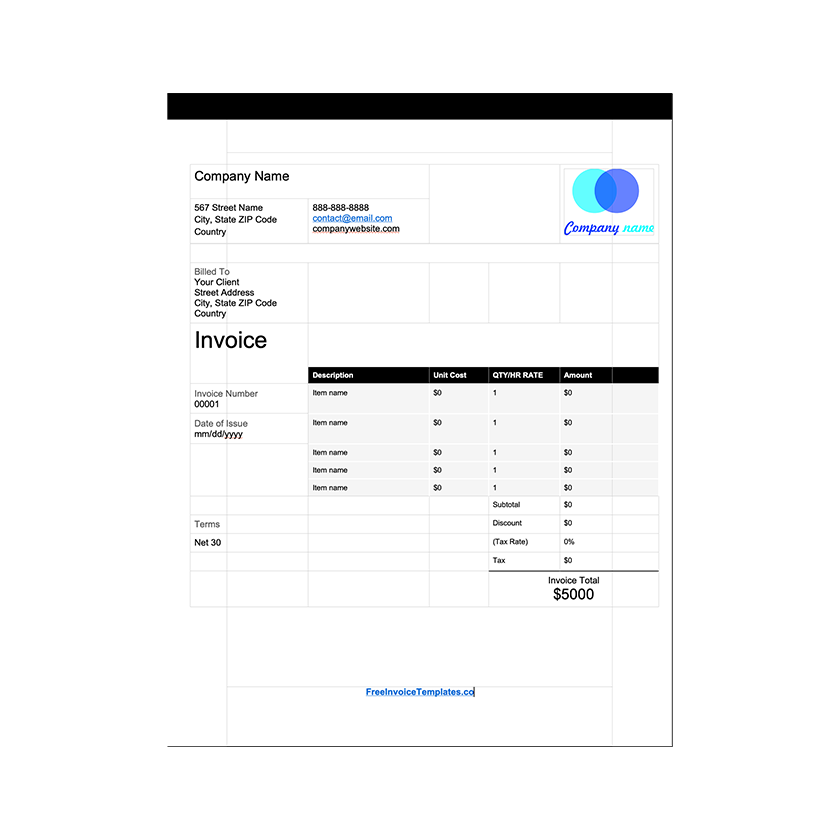
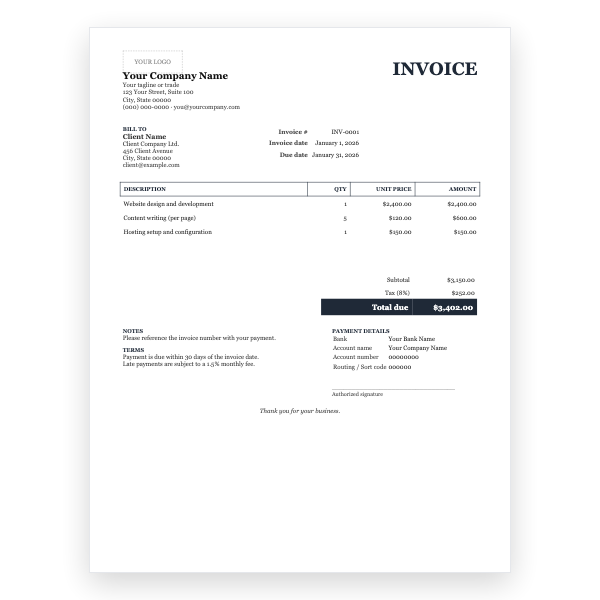
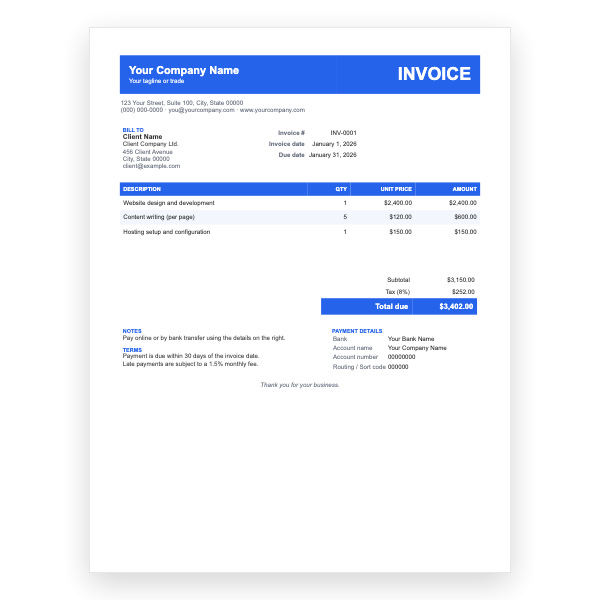
Click the logo placeholder, delete it, and insert your own image. Type your business details into the header.
- 3
Fill in the Billed To block, the invoice number, and the date of issue.
- 4
Type each line item into the table. Press Tab in the last cell to add a row.
- 5
Work out the subtotal, tax, and total and type them into the totals column.
- 6
Choose File, Save As, and pick PDF. Send the PDF, not the Word file.
The date column settles most queries
When a client questions a freelance invoice, the question is almost always when the work happened. Putting the date on each line answers it before it is asked. Keep the task description short and match it to the wording in your project tracker so both sides are looking at the same record.
Payment methods that suit your clients
The Notes block lists bank transfer, PayPal, and card by default. Delete the ones you do not accept and add your PayPal email or a payment link. For international clients, a Wise or IBAN transfer usually costs both sides less than PayPal.
Tips
- Set Terms to 14 days; short terms get paid faster.
- Record hours as decimals, for example 1.5 rather than 1:30.
- Name the PDF with the client, project, and invoice number.
Questions about this template
Can I bill a flat fee instead of hours?
Yes. Put 1 in Hours and the fee in Rate, or delete the Hours column from the table.
Does Word add up the hours?
No. Add them yourself, or use the Hourly Excel template, which totals hours and amounts automatically.
Can I change the green accent?
Yes. Select the header row and the Total due row and change the shading from Table Design.