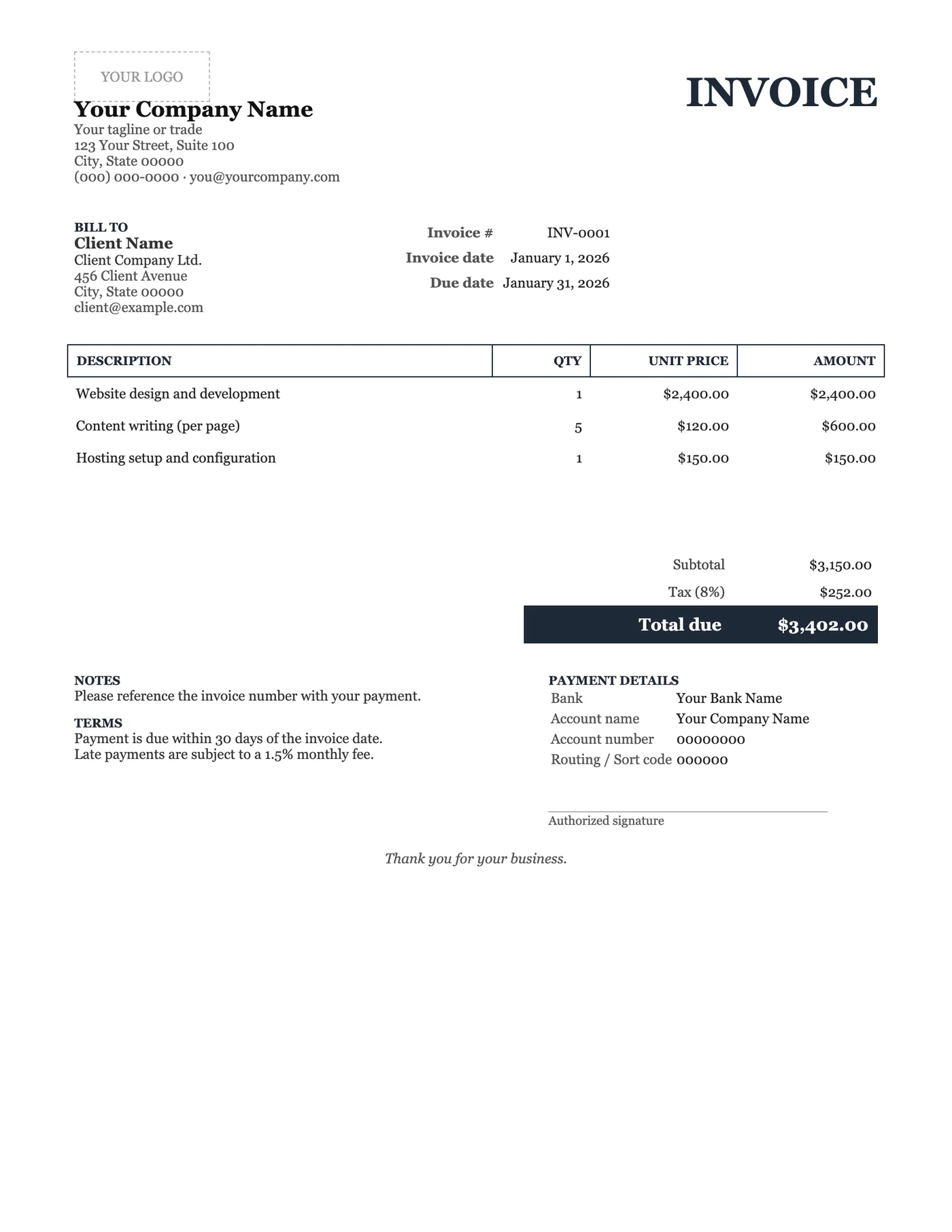
How to use it in Microsoft Word
- 1
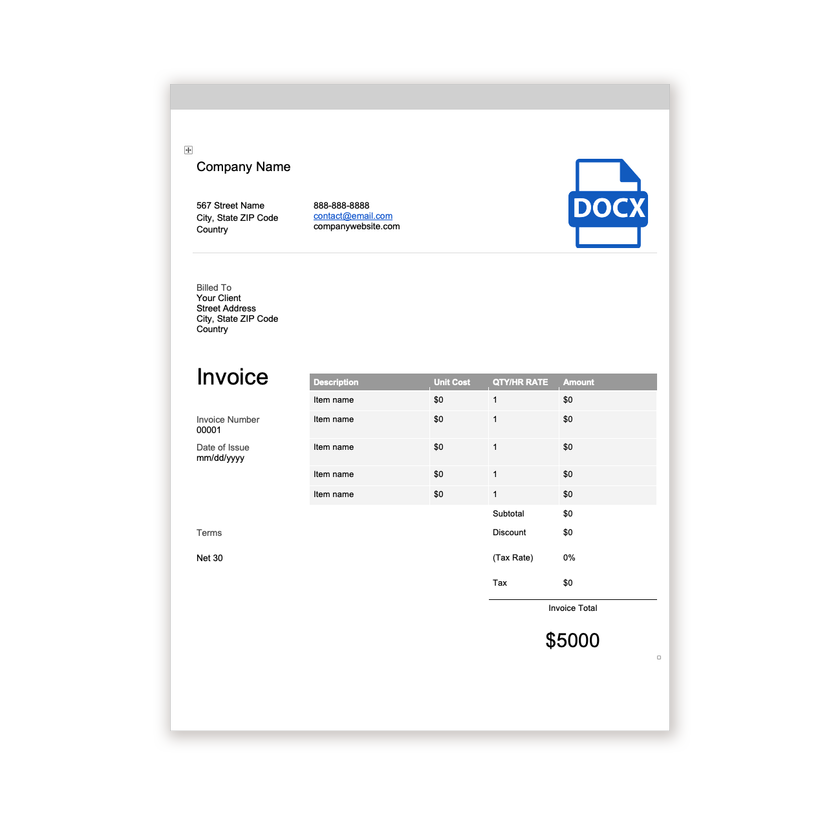
Download the .docx file and open it in Word. If a Protected View bar appears, click Enable Editing.
- 2
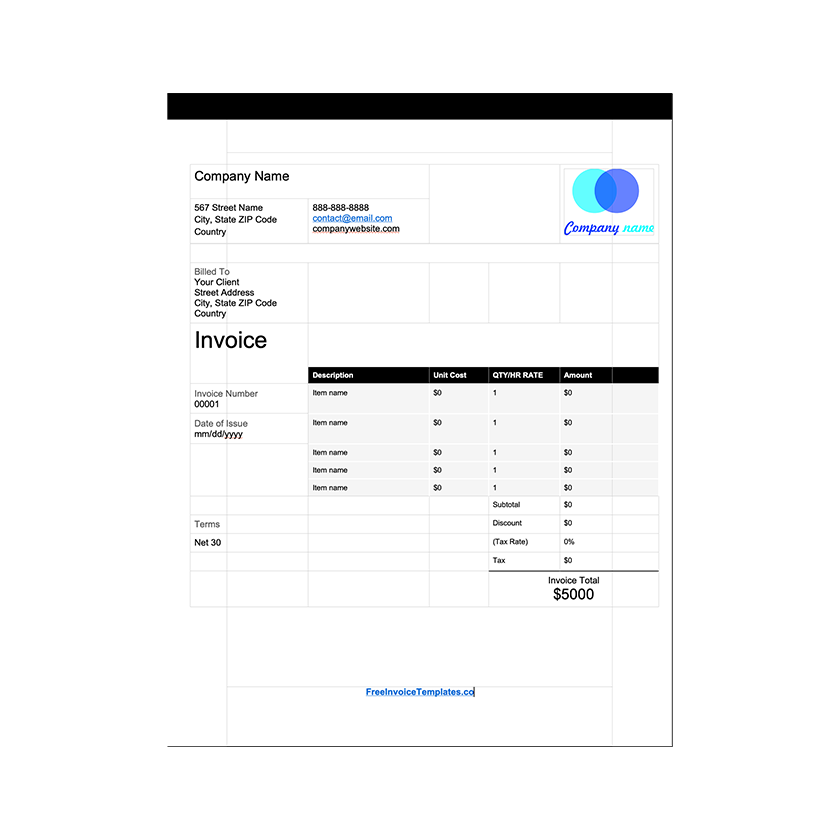
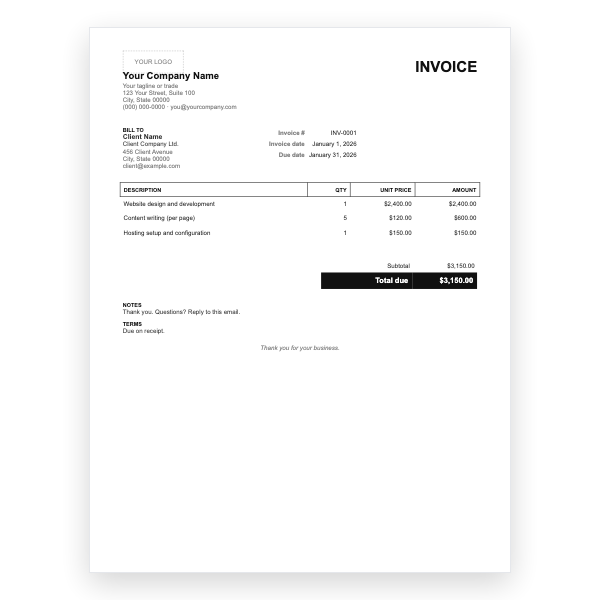
Click the logo placeholder, delete it, and insert your own image. Type your business details into the header.
- 3
Fill in the Billed To block, the invoice number, and the date of issue.
- 4
Type each line item into the table. Press Tab in the last cell to add a row.
- 5
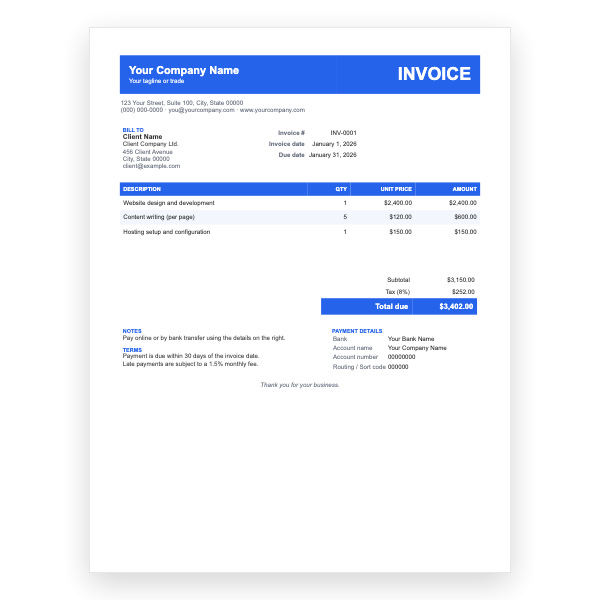
Work out the subtotal, tax, and total and type them into the totals column.
- 6
Choose File, Save As, and pick PDF. Send the PDF, not the Word file.
Built from Word tables, not text boxes
Every block on the page is a borderless Word table, so columns stay aligned when you type longer descriptions and nothing floats away. The line-item table has ruled rows rather than shading, which photocopies cleanly and keeps the serif look. Change the typeface or the dark grey accent from the Home tab and every row follows.
Why a signature line still matters
Some clients, auditors, and grant bodies want a countersigned invoice. The line at the bottom right gives them a place to do it. If you sign digitally, right-click the line and insert a picture of your signature, then save as PDF so it cannot be moved.
Tips
- Press Tab in the last cell of the item table to add a row; the ruling carries over.
- Replace the sample bank details before you save a master copy.
- Export with File, Save As, PDF; the serif fonts are embedded so the recipient sees the same page.
Questions about this template
Does the Word template calculate the totals?
No. Word does not add numbers by default. Type the subtotal, tax, and total, or use the Excel version of a similar design for automatic totals.
Can I change Georgia to another font?
Yes. Select all with Ctrl+A or Cmd+A and pick a font. Times New Roman, Cambria, and Garamond keep the formal feel.
Which versions of Word open it?
Word 2010 and later on Windows and Mac, Word for Microsoft 365, and Word Online. LibreOffice Writer and Google Docs also import it with small spacing differences.