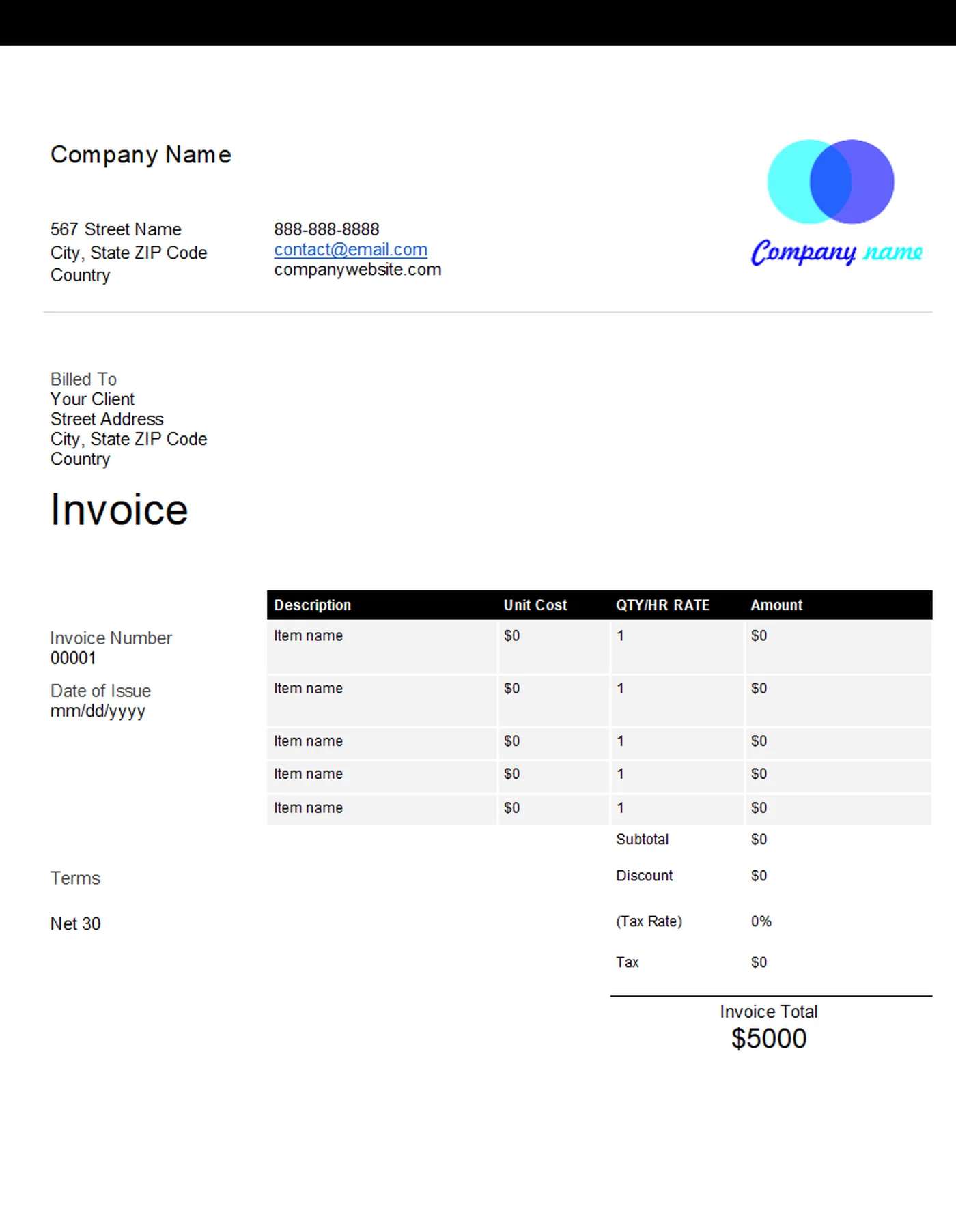
How to use it in Microsoft Word
- 1
Download the .docx file and open it in Word. If a Protected View bar appears, click Enable Editing.
- 2
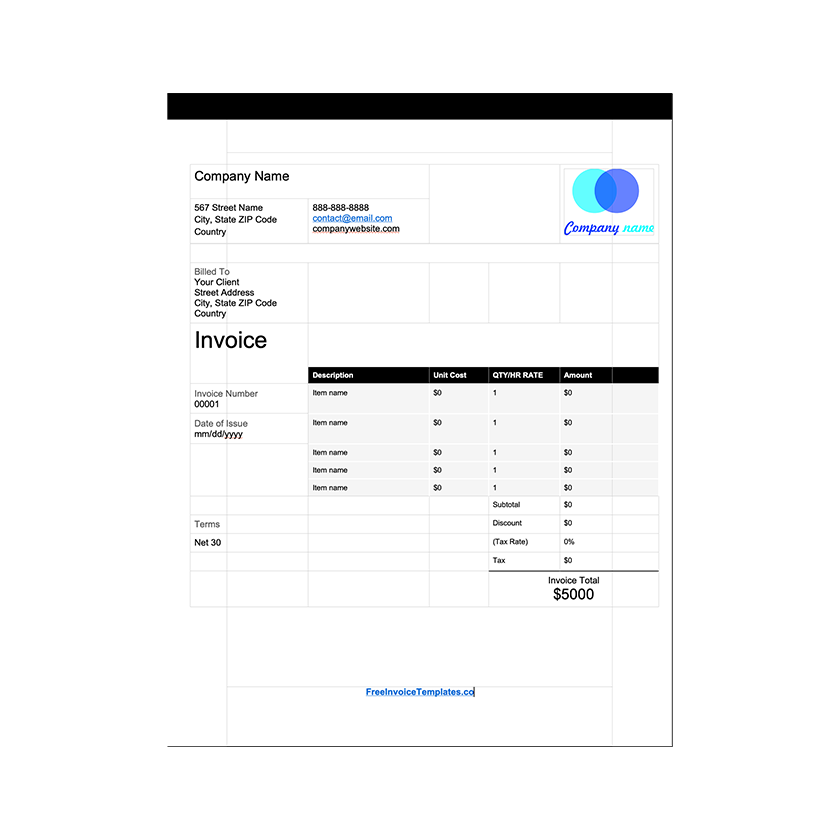
Click the logo placeholder, delete it, and insert your own image. Type your business details into the header.
- 3
Fill in the Billed To block, the invoice number, and the date of issue.
- 4
Type each line item into the table. Press Tab in the last cell to add a row.
- 5
Work out the subtotal, tax, and total and type them into the totals column.
- 6
Choose File, Save As, and pick PDF. Send the PDF, not the Word file.
How the Word template is laid out
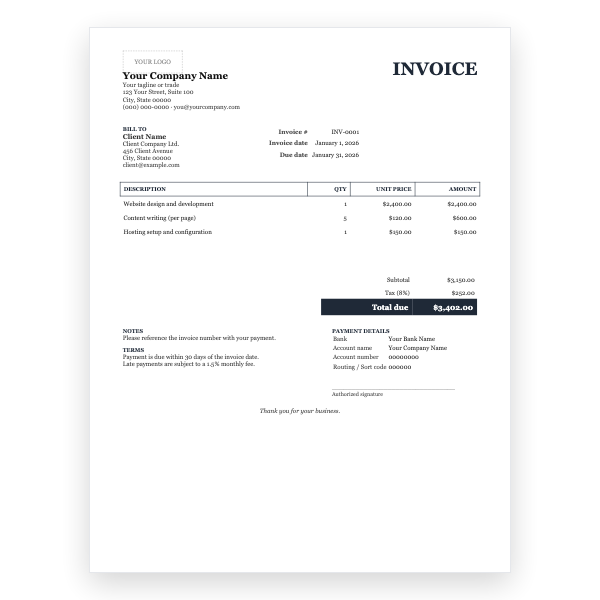
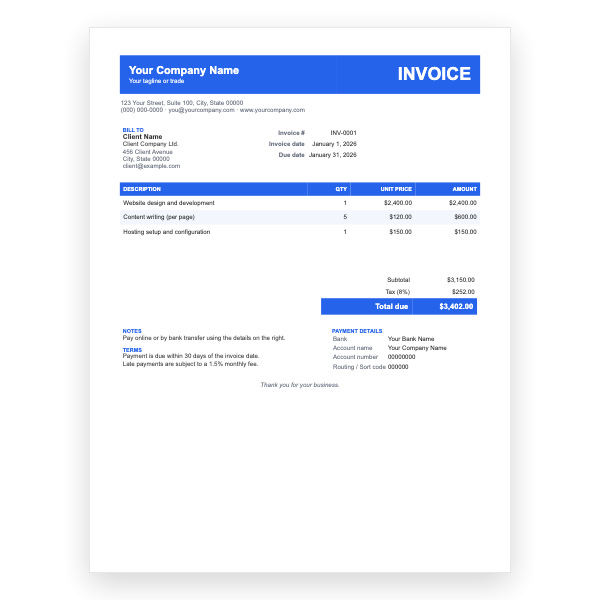
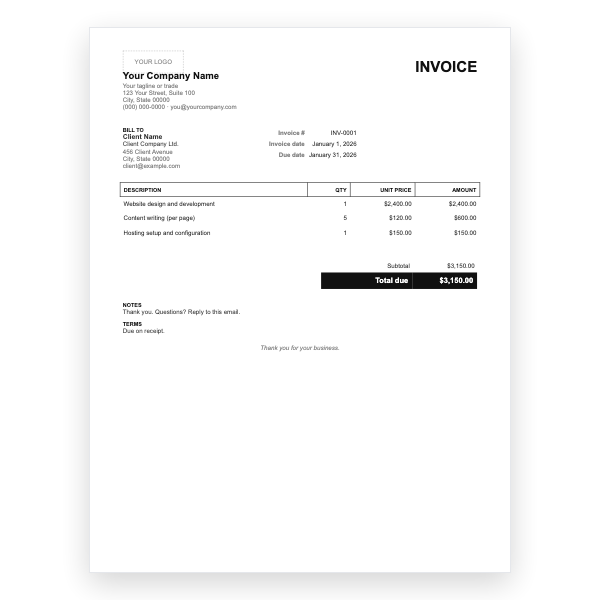
The page is a single table with the borders hidden, which is why nothing jumps around when you type. The header holds your business details on the left and the logo on the right. Below it, the Billed To block and the invoice meta sit on the left while the line items and totals run down the right. Everything is standard Word formatting, so fonts, colours, and the shaded table header can be changed from the Home tab.
Totals are typed, not calculated
Word does not add numbers for you. Work out the amount for each line, the subtotal, and the tax, and type them in. For most small invoices that takes a minute. If you send long itemised invoices every week, the Excel version of this same design does the maths automatically.
Tips
- Save a master copy with your branding and no client details, then use Save As for each new invoice.
- Press Tab in the last cell of the item table to add a row, or right-click a row and choose Delete Rows to remove one.
- Export to PDF before sending so the layout cannot shift on your client’s computer.
Questions about this template
Which versions of Word open this template?
Word 2010 and later on Windows and Mac, Word for Microsoft 365, and Word Online. Google Docs, LibreOffice, and Apple Pages also import .docx files with minor font differences.
Can I remove the discount or tax rows?
Yes. Click into the row, right-click, and choose Delete Rows. The totals column is plain text, so nothing else is affected.
How do I add my logo?
Click the placeholder image, press Delete, then choose Insert, Pictures, and select your logo. If it pushes the layout, right-click it and set Wrap Text to In Front of Text.