How to use it in OpenOffice / LibreOffice
- 1
Download the .odt file and open it in LibreOffice Writer or OpenOffice Writer.
- 2
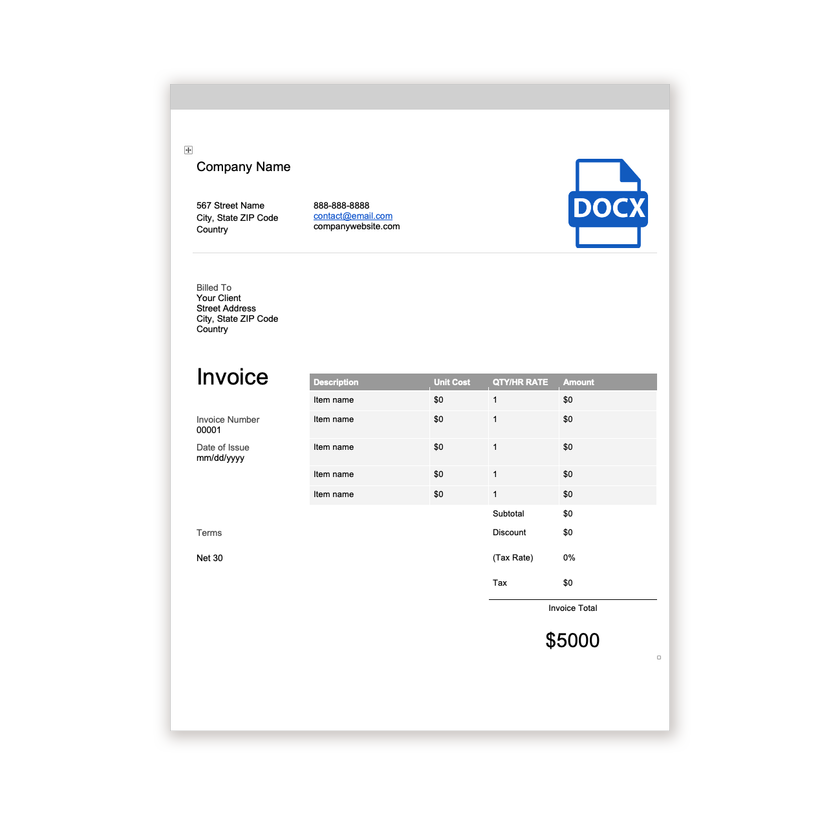
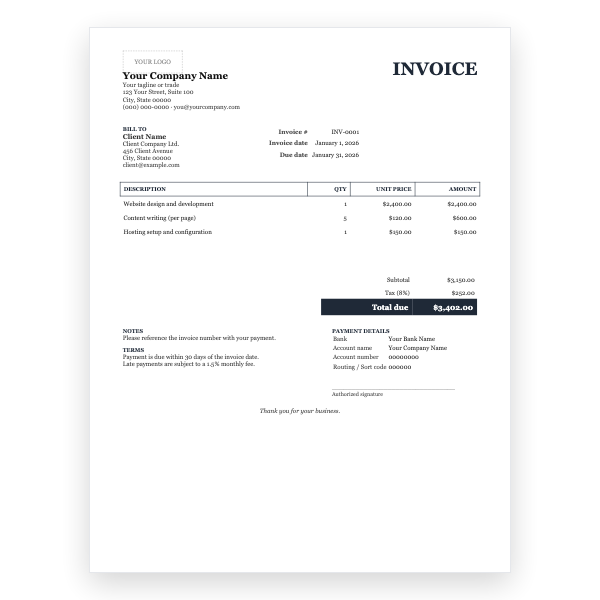
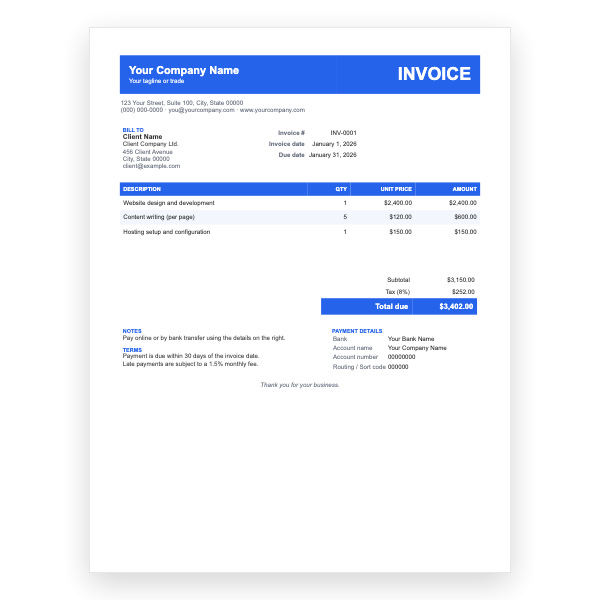
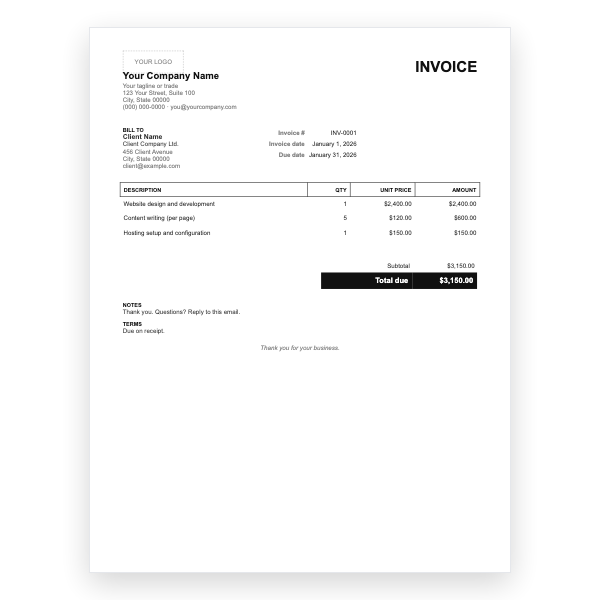
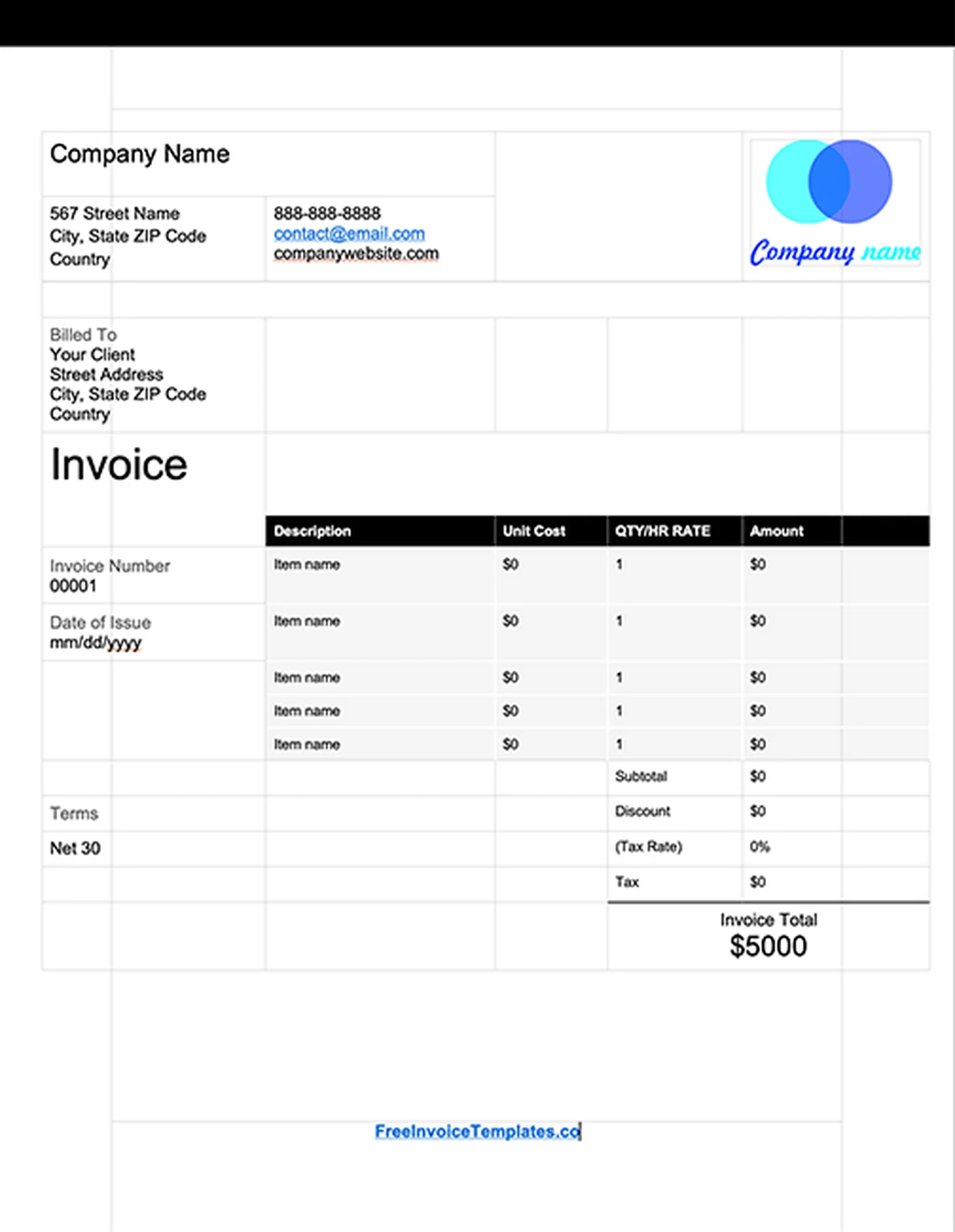
Replace the logo placeholder and type your business details into the header.
- 3
Fill in the Billed To block, the invoice number, and the date.
- 4
Type each line item into the table. Use Table, Insert, Rows Below for more lines.
- 5
Work out the subtotal, tax, and total and type them in.
- 6
Choose File, Export As, Export as PDF and send the PDF.
Why a native .odt file
Writer opens .docx files, but tables and spacing can shift during import. This template was saved from Writer itself, so what you see is exactly what prints. OpenDocument is also an ISO standard, which makes it a safe format for records you need to open years from now.
Editing in Writer
The layout is a borderless table. Click into any cell to type, use Table, Insert, Rows Below to add items, and Table, Delete, Rows to remove them. Totals are typed by hand; for calculated totals open our Excel template in LibreOffice Calc.
Tips
- Export with File, Export As, Export as PDF before sending.
- Save a template copy with File, Templates, Save as Template so it appears in the Writer start screen.
- If the fonts look different, install Liberation Sans or set the document font under Format, Character.
Questions about this template
Does it open in Microsoft Word?
Word 2010 and later open .odt files, but for Word users our .docx template is the better match.
Can I use it in Google Docs?
Yes. Upload the file to Drive and open it with Docs, which converts it. Our native Google Docs template avoids the conversion step.
Is the design the same as the Word version?
Yes. The Word, Excel, PDF, Google Docs, Google Sheets, and OpenOffice files all share one layout, so you can switch formats later without your invoices changing their look.