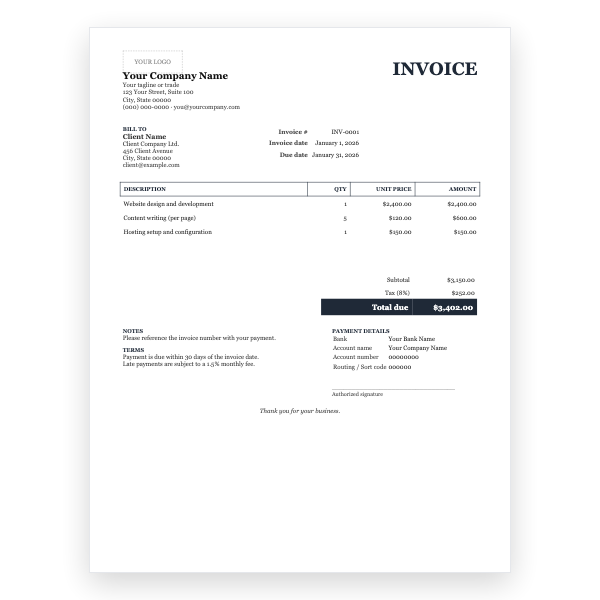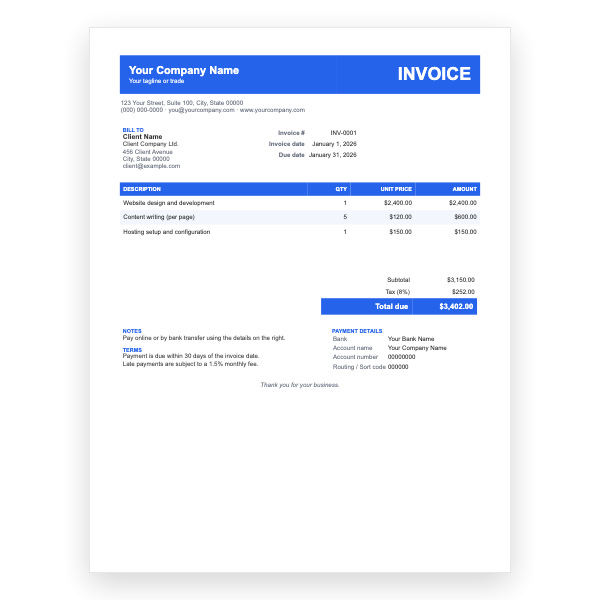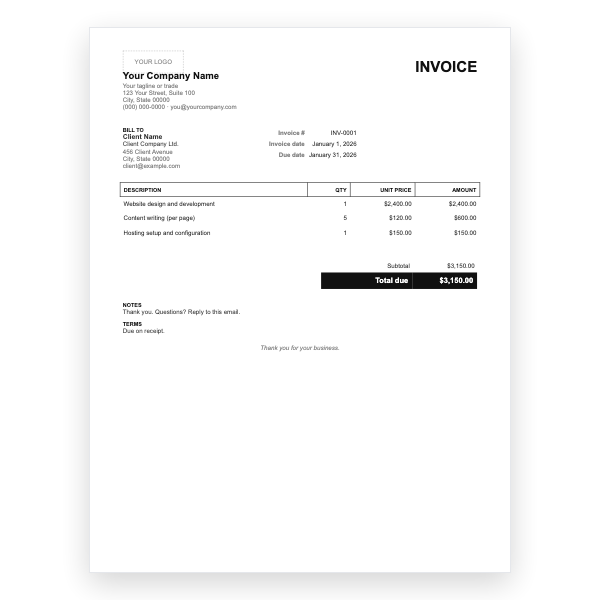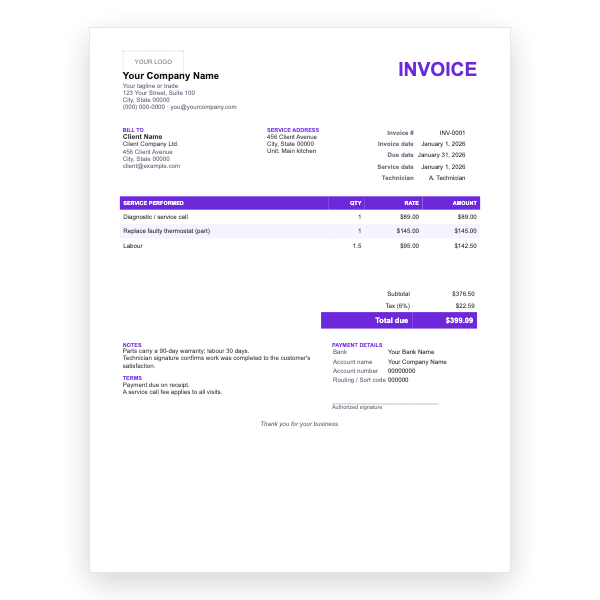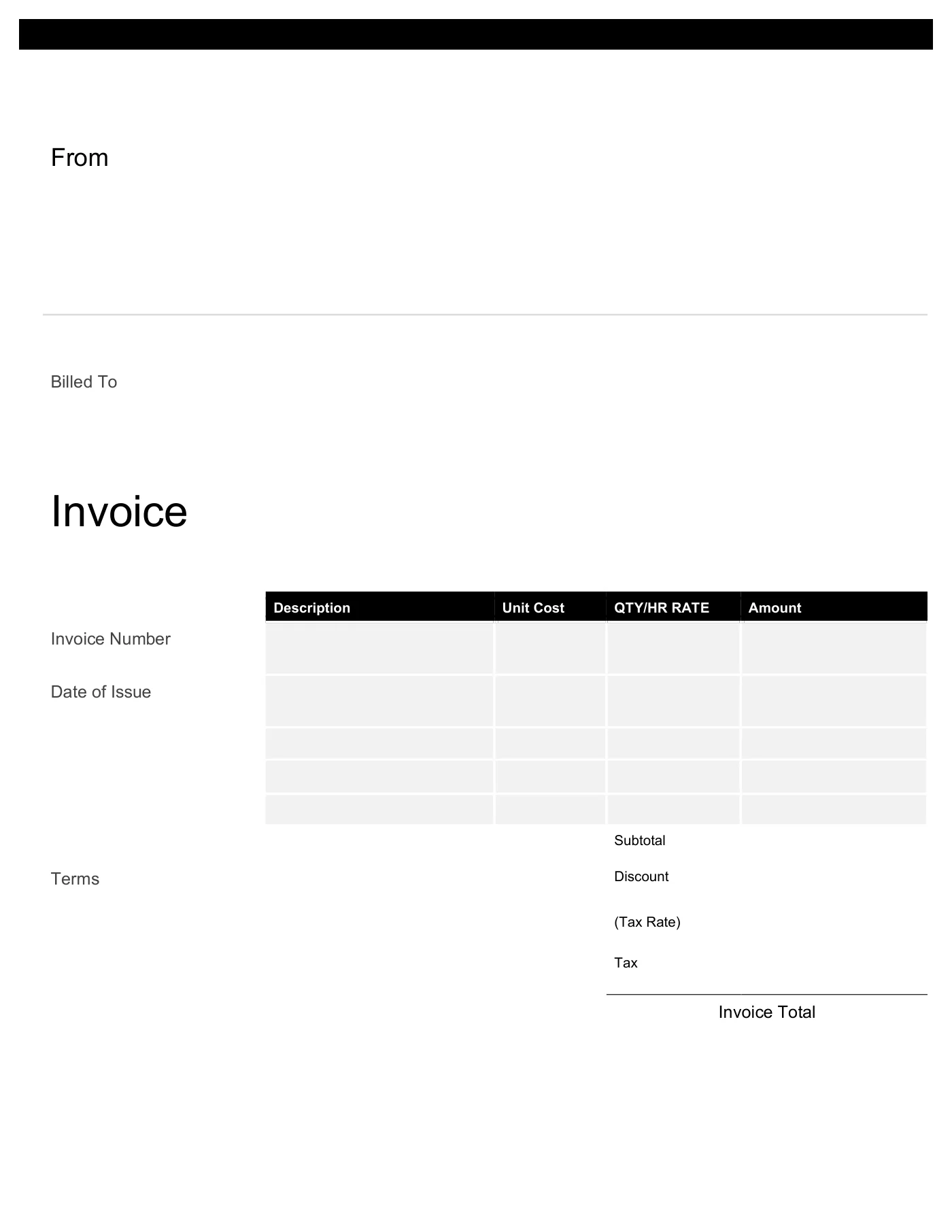
How to use it in Any PDF reader
- 1
Download the PDF to your computer or phone.
- 2
Open it in Preview, Acrobat Reader, Microsoft Edge, or any PDF editor.
- 3
Use the text tool to type into each field, or print it and fill it in by hand.
- 4
Save the completed file with the invoice number in the name.
- 5
Email it to your client or print it for the job site.
Filling in a PDF invoice
Open the file in Preview on a Mac, Adobe Acrobat Reader, Microsoft Edge, or any browser with a PDF editor and use the text tool to type into each area. On a phone, Files on iOS and Google Drive on Android both let you add text. If you prefer, print it and write by hand.
When to send a PDF rather than a Word file
Always. A PDF cannot be edited by accident, opens without special software, and is what accounts departments expect. If you want to customise the design before you create the PDF, start from the Word, Excel, Google Docs, or Google Sheets version and export it when you are done.
Tips
- Set the printer to Actual size rather than Fit to page so the layout matches the screen.
- Name the file with the invoice number and your business name so your client can find it.
- Flatten the PDF after filling it in so the text cannot be moved; most editors call this Print to PDF.
Questions about this template
Can I edit the PDF directly?
You can add text with a PDF editor, but you cannot change the layout or fonts. For real edits use the Word, Excel, or Google versions and export a new PDF.
Does it print on A4?
Yes. The page is US Letter size, which fits on A4 with slightly larger margins. Choose Actual size in the print dialog.
Is the PDF fillable with form fields?
It is a flat PDF, so you type over it with the text tool rather than tabbing between fields. That keeps it compatible with every reader.