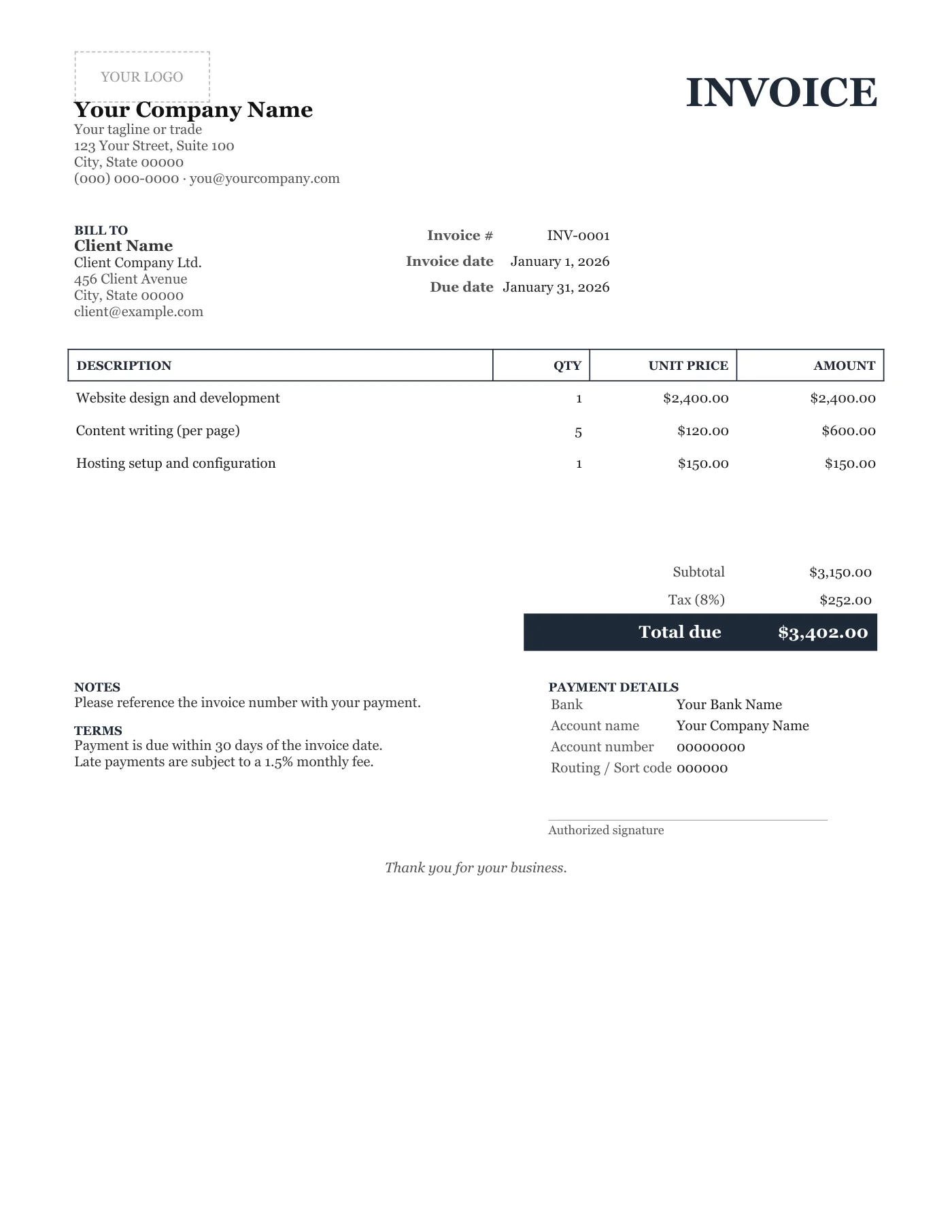
How to use it in Any PDF reader
- 1
Download the PDF to your computer or phone.
- 2
Open it in Preview, Acrobat Reader, Microsoft Edge, or any PDF editor.
- 3
Use the text tool to type into each field, or print it and fill it in by hand.
- 4
Save the completed file with the invoice number in the name.
- 5
Email it to your client or print it for the job site.
Filling in a PDF
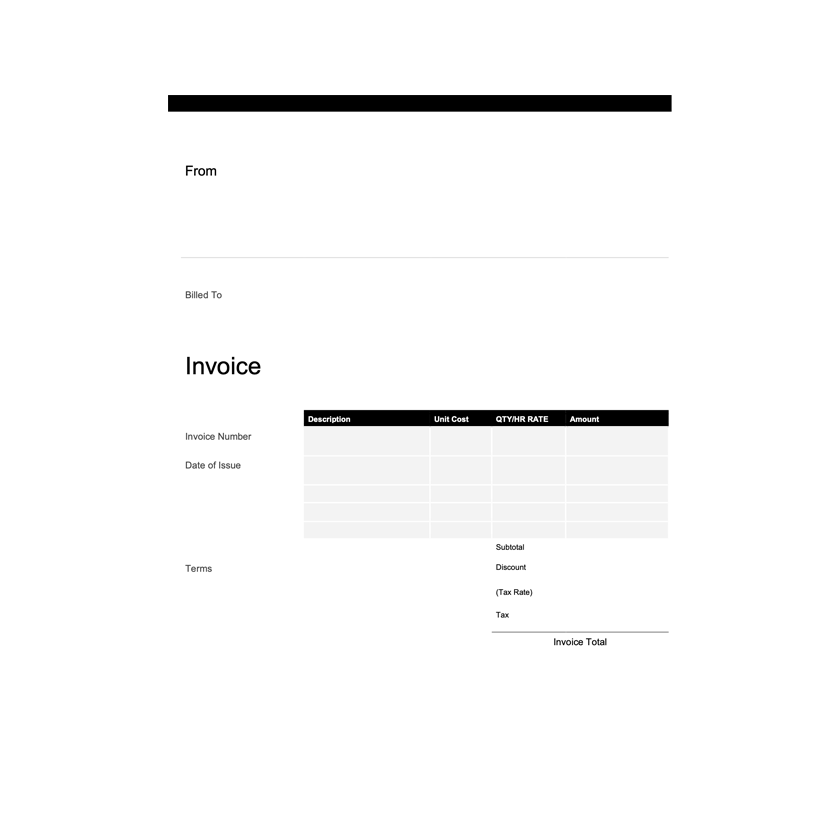
Open the file in Preview on a Mac, Acrobat Reader, or Microsoft Edge and use the text tool to type over each field. The sample figures are placeholders; cover them with a white box first if your editor allows it. If you prefer, print the page and write by hand.
When you want to change the design
A PDF cannot be restyled. If you want a different typeface, colour, or extra fields, start from the Classic Word Invoice Template, make your changes there, and export your own PDF.
Tips
- Print at Actual size so the layout matches the screen.
- Flatten the PDF after filling it in so the text cannot be moved.
- Name the file with the invoice number and your business name.
Questions about this template
Can I edit the PDF directly?
You can type over it with a PDF editor, but not change the layout. Use the Word version for real edits.
Does it print on A4?
Yes. Choose Actual size in the print dialog; the margins grow slightly.
Is it the same design as the Google Docs classic template?
Yes. The classic design is available for Google Docs, Word, and PDF.