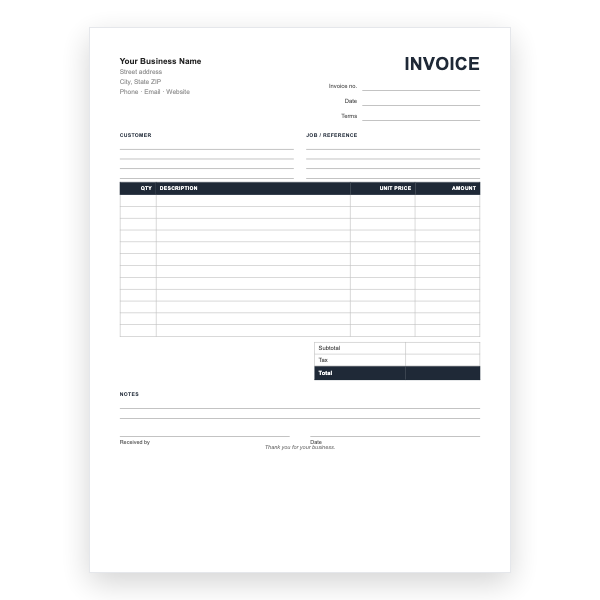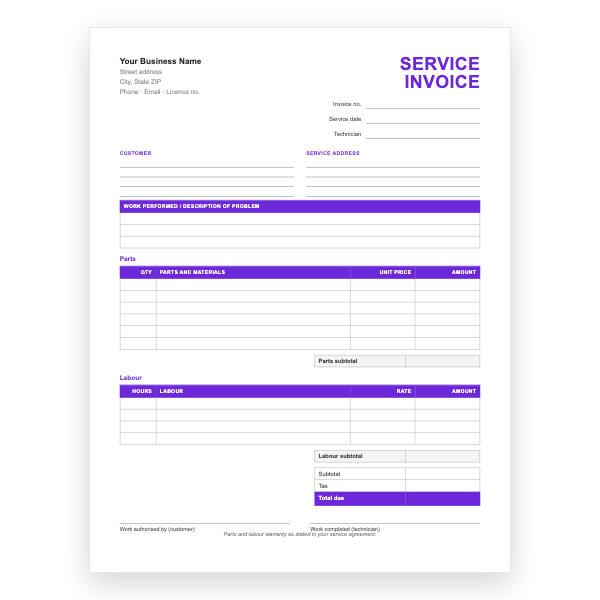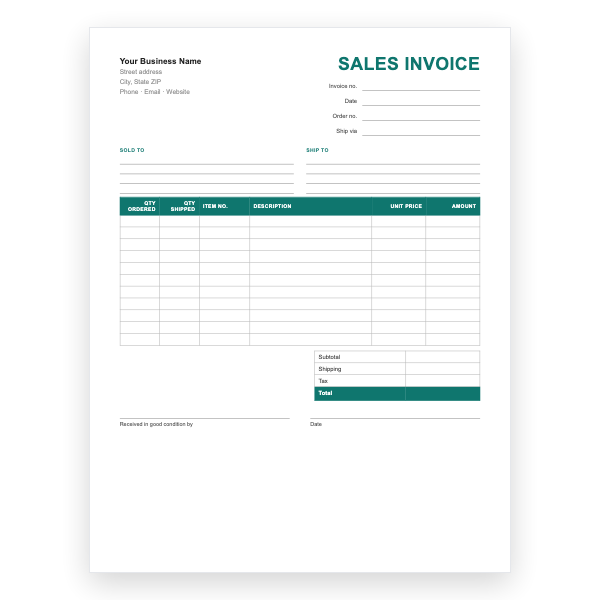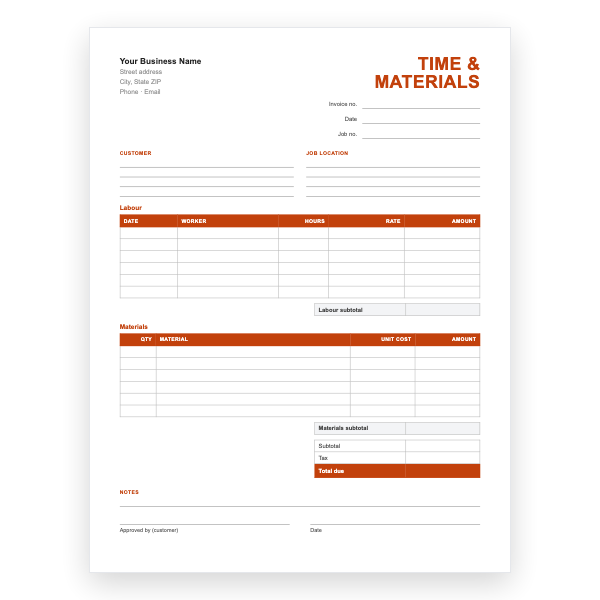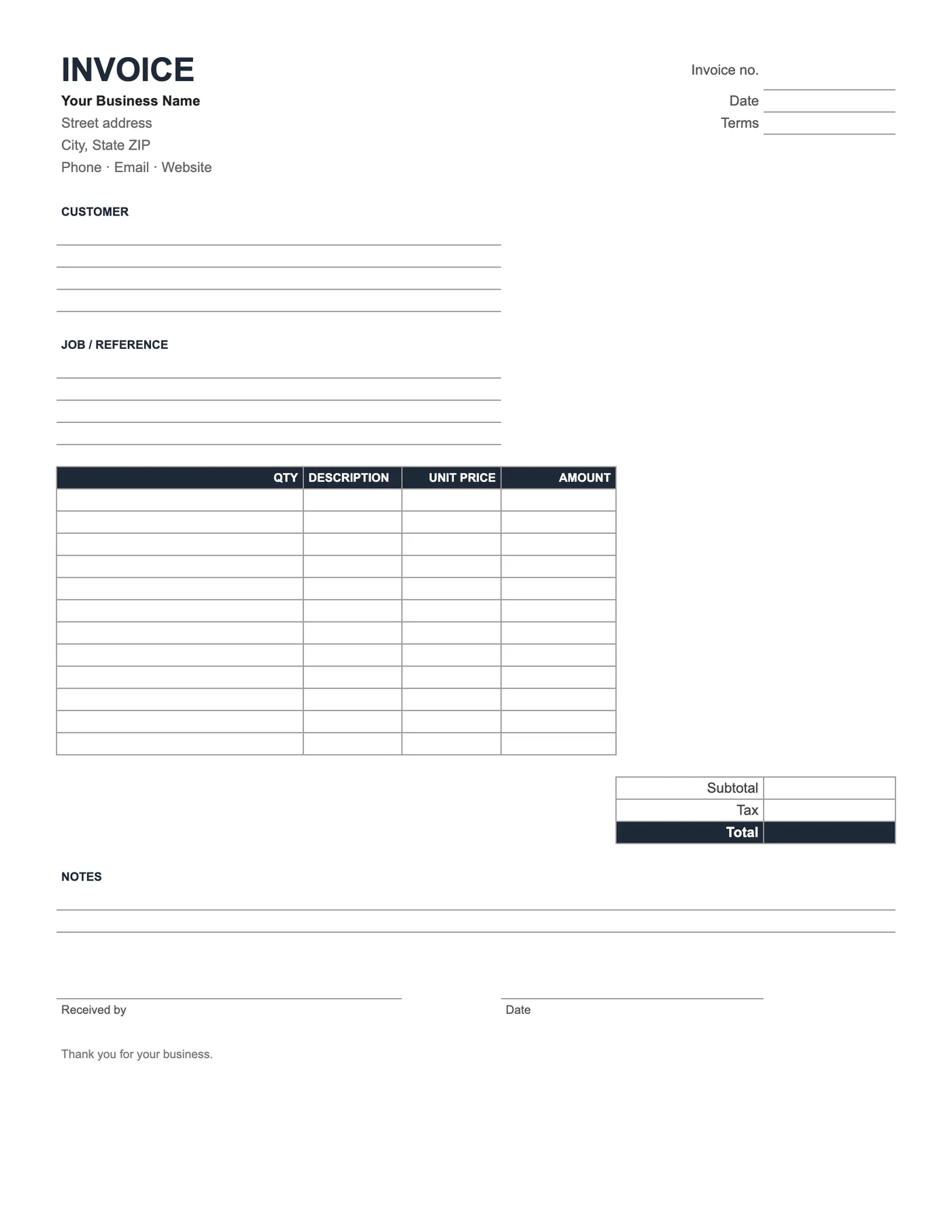
How to use it in Microsoft Excel
- 1
Download the .xlsx file and open it in Excel. Click Enable Editing if Excel asks.
- 2
Type your business details and the client’s into the header cells.
- 3
Enter a description, unit cost, and quantity on each row. The Amount column fills itself in.
- 4
Type your tax rate in the Tax Rate cell. Subtotal, Tax, and Invoice Total update automatically.
- 5
Insert extra rows inside the item block if you need them, then copy an Amount formula down.
- 6
Choose File, Save As, PDF to create the copy you send.
Formulas in a form layout
Each Amount cell multiplies Qty by Unit price, Subtotal adds the column, and Total adds Subtotal and Tax. Type a tax amount or a formula into the Tax cell. The borders match the printed form, so a typed invoice and a handwritten one look alike.
Printing blank
Printed empty, the formula cells show nothing, so the form looks exactly like the PDF. The print area is already set to one page; press Ctrl+P or Cmd+P and print as many as you need.
Tips
- Type your business details once and save a master.
- Type the tax as a formula so it updates with the subtotal.
- Save a PDF of each typed invoice for your records.
Questions about this template
Why are the Amount cells blank when printed empty?
The formulas return zero, which is formatted to show as blank, so a printed form stays clean.
Can I add rows?
Yes. Insert rows inside the table and copy an Amount formula down.
Does it open in Google Sheets?
Yes. Upload the .xlsx to Drive and open it with Sheets.