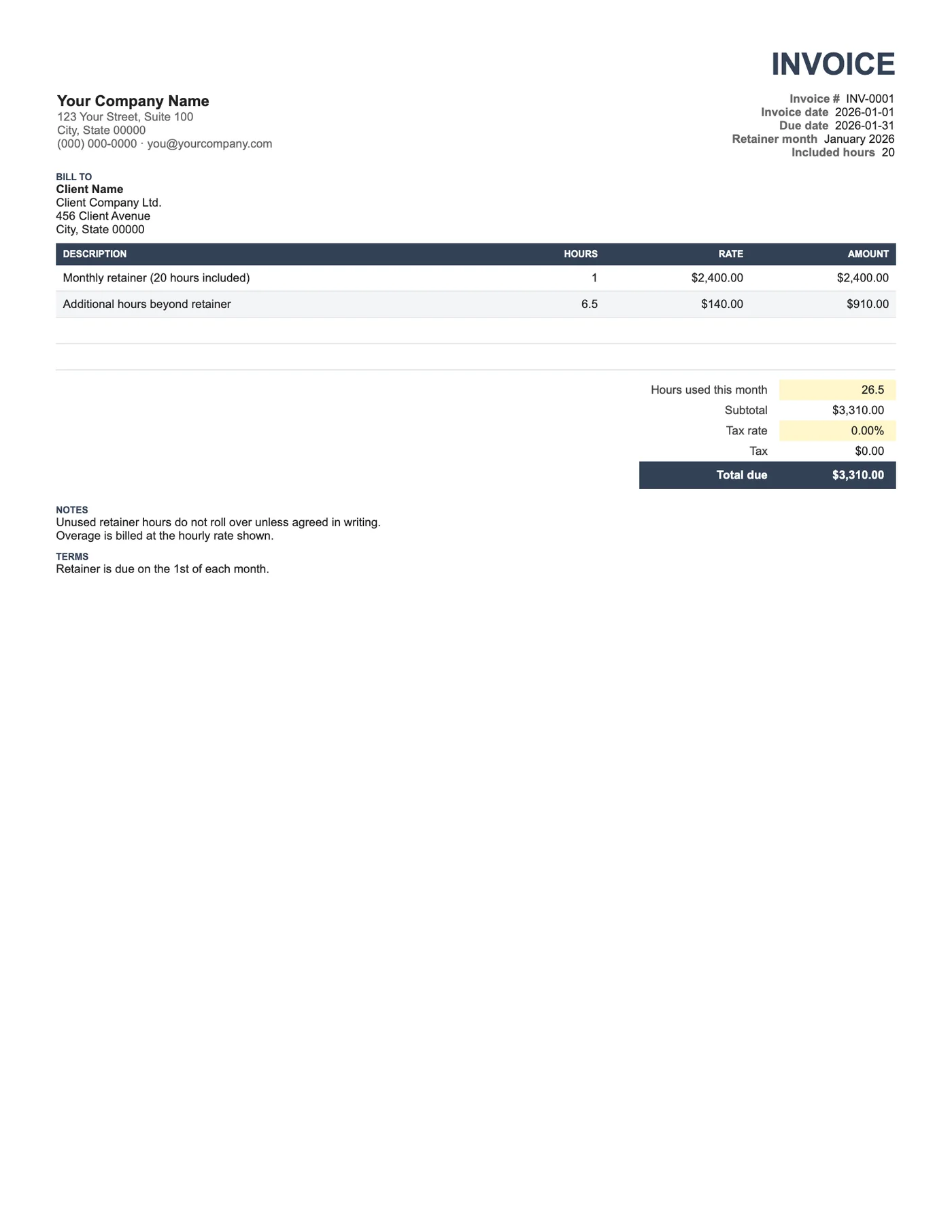
How to use it in Google Sheets
- 1
Click Open in Google Sheets. If asked, sign in; Google places a copy in your Drive.
- 2
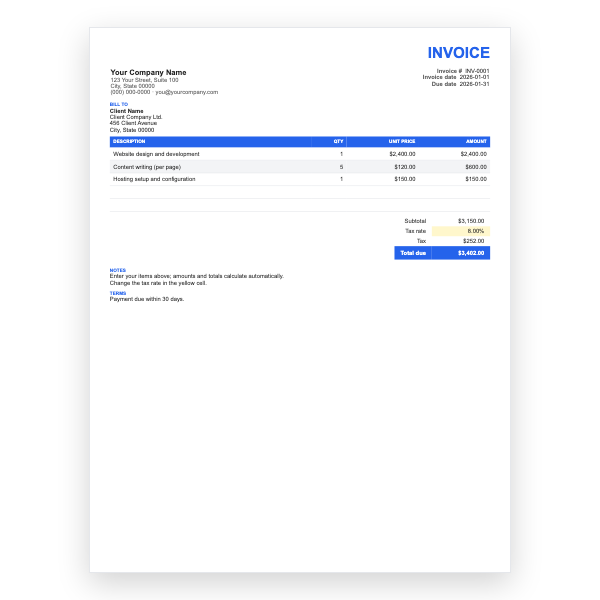
Fill in the yellow cells only: your details, the client, and each line item.
- 3
Type your tax rate in the rate cell. Amounts, subtotal, tax, and total update on their own.
- 4
To add lines, insert rows inside the item block so the totals keep including them.
- 5
Check the figures once, then choose File, Download, PDF and select Fit to width.
- 6
Send the PDF. Duplicate the tab for your next invoice.
Retainer plus overage, made visible
The first line is the retainer itself with the hours it includes. The hours used cell records what was actually delivered. Overage hours, if any, go on the next line at your hourly rate. Clients who can see they used 26.5 of 20 hours rarely dispute the extra; the dispute comes when the extra appears without context.
Rolling over or not
State in Notes whether unused hours roll over. Most retainers do not, and saying so each month avoids an awkward conversation later. If you allow rollover, add a line showing the balance carried forward.
Tips
- Send a short usage report with the invoice; the hours used cell is the headline.
- Bill the retainer in advance and the overage in arrears if your contract allows.
- Review the retainer size every quarter against actual hours.
Questions about this template
How do I calculate overage hours?
Subtract the included hours from the hours used and enter the result on the overage line. You can replace that cell with a formula if you prefer.
Can I bill a flat monthly fee with no hours?
Yes. Delete the hours used and overage lines, or use our Recurring Monthly template.
Should the retainer be taxed?
Usually yes, as a service. Set the Tax rate to your rate or to zero if you are not registered.