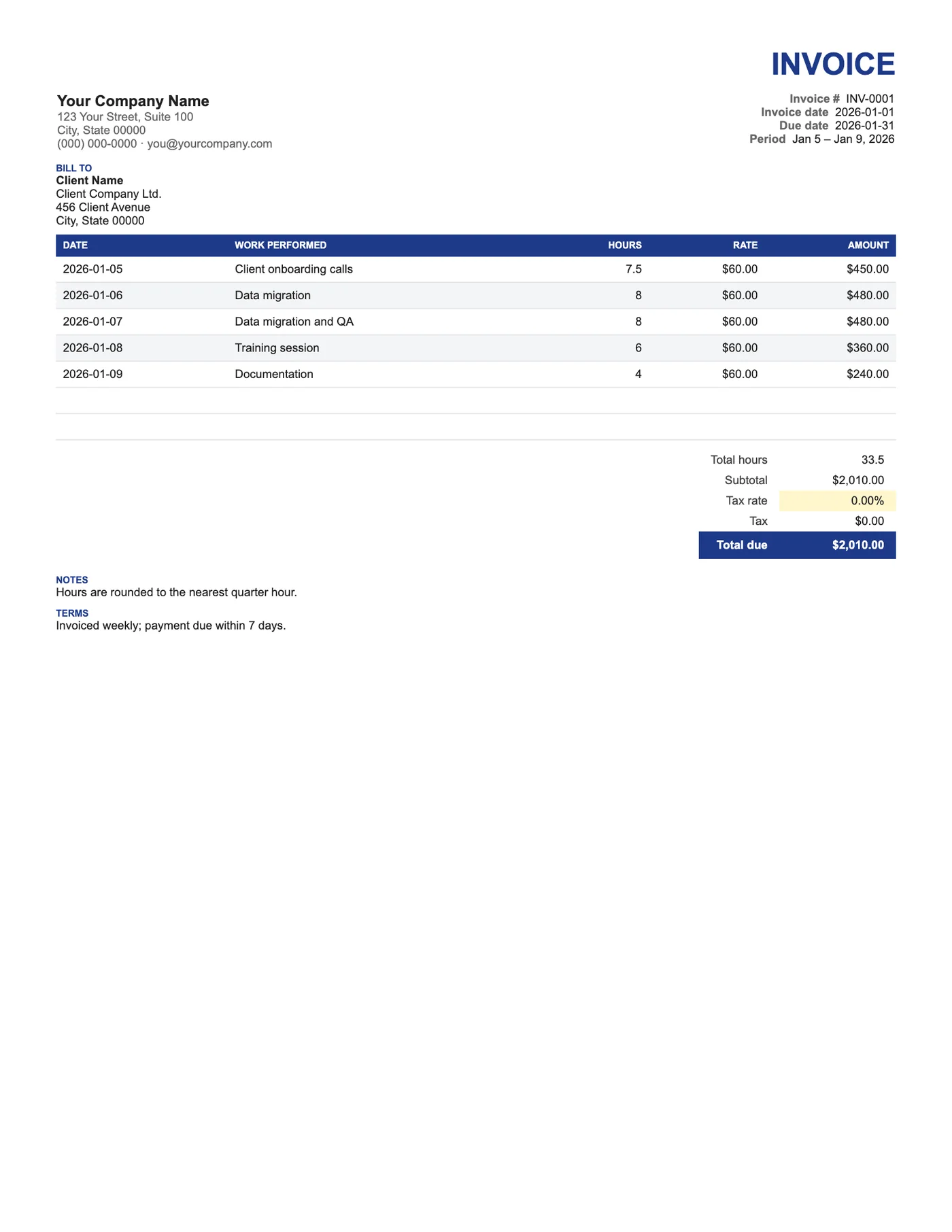
How to use it in Google Sheets
- 1
Click Open in Google Sheets. If asked, sign in; Google places a copy in your Drive.
- 2
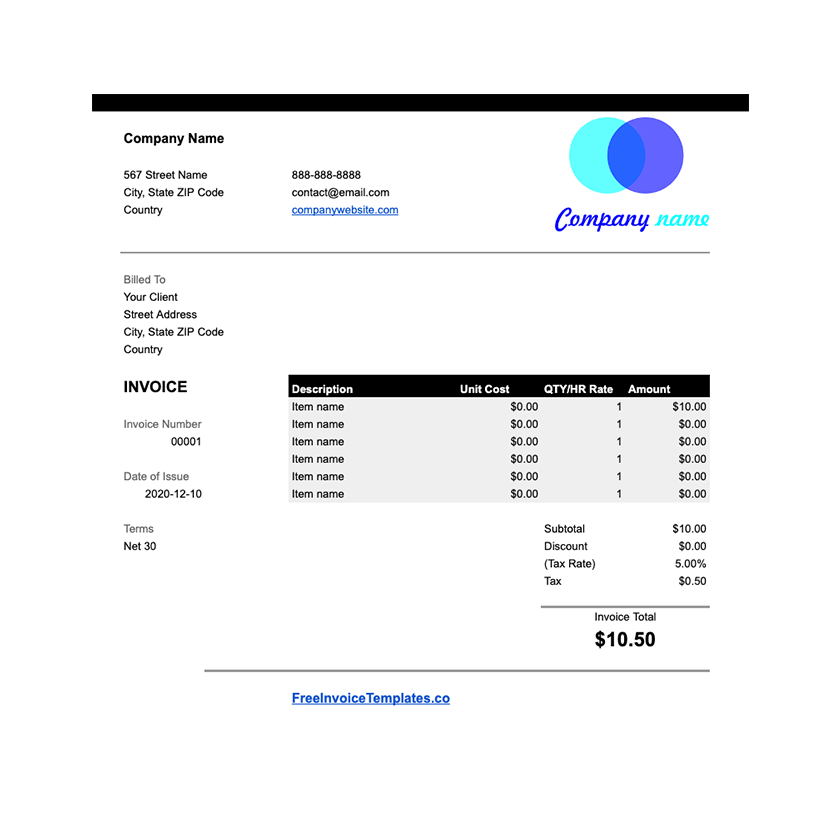
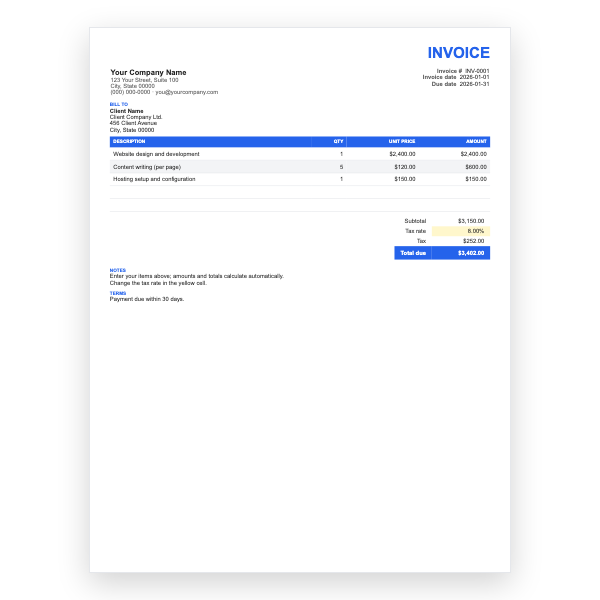
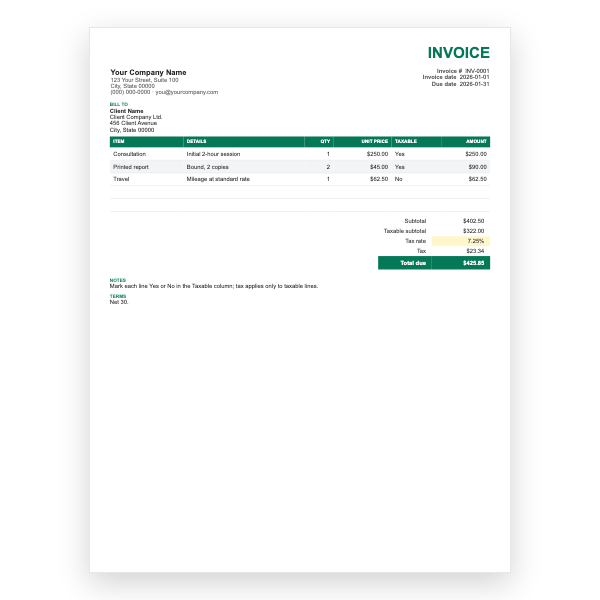
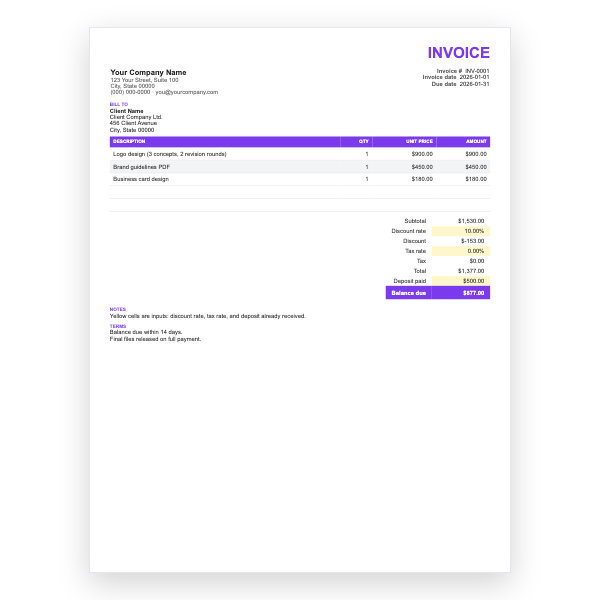
Fill in the yellow cells only: your details, the client, and each line item.
- 3
Type your tax rate in the rate cell. Amounts, subtotal, tax, and total update on their own.
- 4
To add lines, insert rows inside the item block so the totals keep including them.
- 5
Check the figures once, then choose File, Download, PDF and select Fit to width.
- 6
Send the PDF. Duplicate the tab for your next invoice.
A rate on every line
Unlike a flat timesheet, this template lets each row carry its own rate, so a day of design at one rate and a day of meetings at another sit on the same invoice. Total hours is summed separately so the client can match it to their records.
Daily or by task
Use one row per day with a short description, or one row per task if you prefer. Either way, record hours in decimals. The tax rate defaults to zero because many hourly workers are not registered; type your rate if you are.
Tips
- Keep a running time log and paste it into the sheet at invoice time.
- Round to the nearest quarter hour unless your contract says otherwise.
- Duplicate the tab each week or month and keep all invoices in one file.
Questions about this template
Can I bill minimum call-out hours?
Yes. Enter the minimum in Hours even if the visit was shorter, and say so in the description.
How do I show overtime?
Add a row with the overtime hours and the overtime rate; the Amount formula handles the rest.
Is there a Google Docs version?
Yes. Our Hourly Invoice template for Google Docs is a week-at-a-glance timesheet with a single rate.