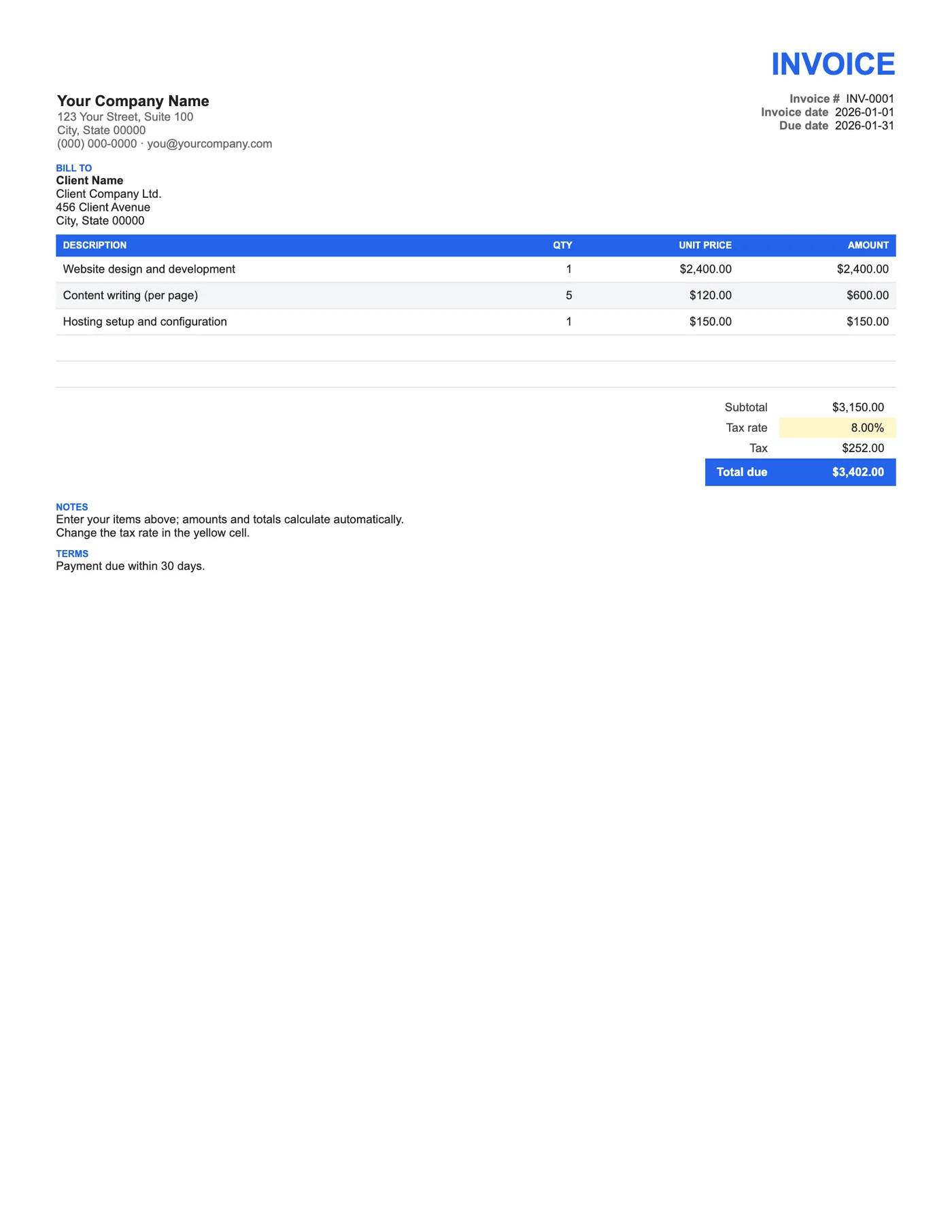
How to use it in Google Sheets
- 1
Click Open in Google Sheets. If asked, sign in; Google places a copy in your Drive.
- 2
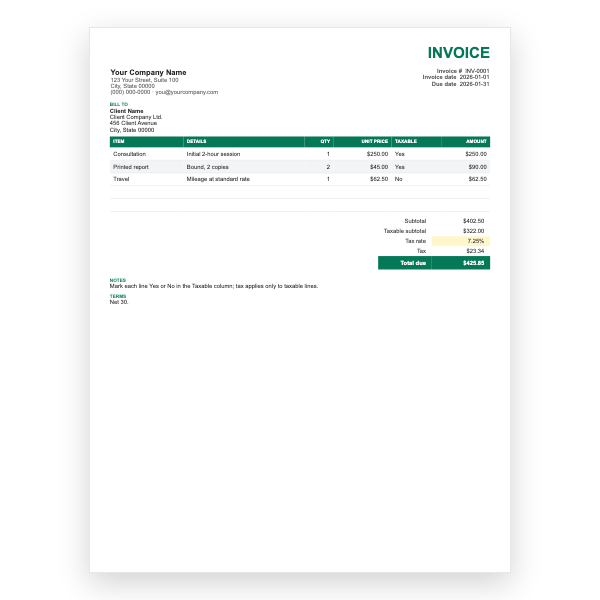
Fill in the yellow cells only: your details, the client, and each line item.
- 3
Type your tax rate in the rate cell. Amounts, subtotal, tax, and total update on their own.
- 4
To add lines, insert rows inside the item block so the totals keep including them.
- 5
Check the figures once, then choose File, Download, PDF and select Fit to width.
- 6
Send the PDF. Duplicate the tab for your next invoice.
Only the yellow cells need you
Every cell you are expected to fill in is shaded yellow. Everything else is a label or a formula. Amount multiplies Qty by Unit price, Subtotal adds the Amount column, Tax multiplies the subtotal by the rate you type, and Total due adds the two. If you only ever touch the yellow cells, the invoice cannot be wrong.
Growing out of it
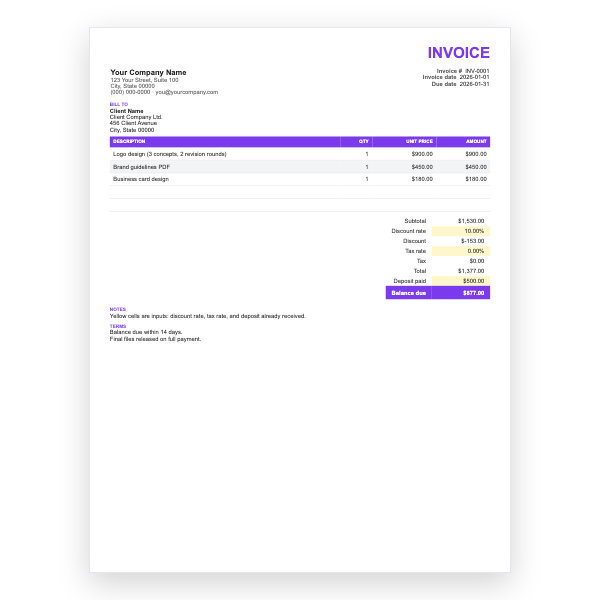
When you need a discount, a deposit, or two tax rates, move to one of our other Sheets templates rather than editing the formulas here. They share the same layout and colour code, so the switch takes no learning.
Tips
- Enter the tax rate as a percentage, for example 8%, not 0.08.
- Insert rows inside the item block so Subtotal keeps including them.
- Download as PDF with File, Download, PDF and choose Fit to width.
Questions about this template
How do I set the tax to zero?
Type 0% in the Tax rate cell. The Tax row shows 0.00 and the Total due equals the Subtotal.
Can I change the currency?
Select the money cells, open Format, Number, Custom currency, and choose your symbol.
Can I open it in Excel?
Yes. From your copy choose File, Download, Microsoft Excel. The formulas carry over.