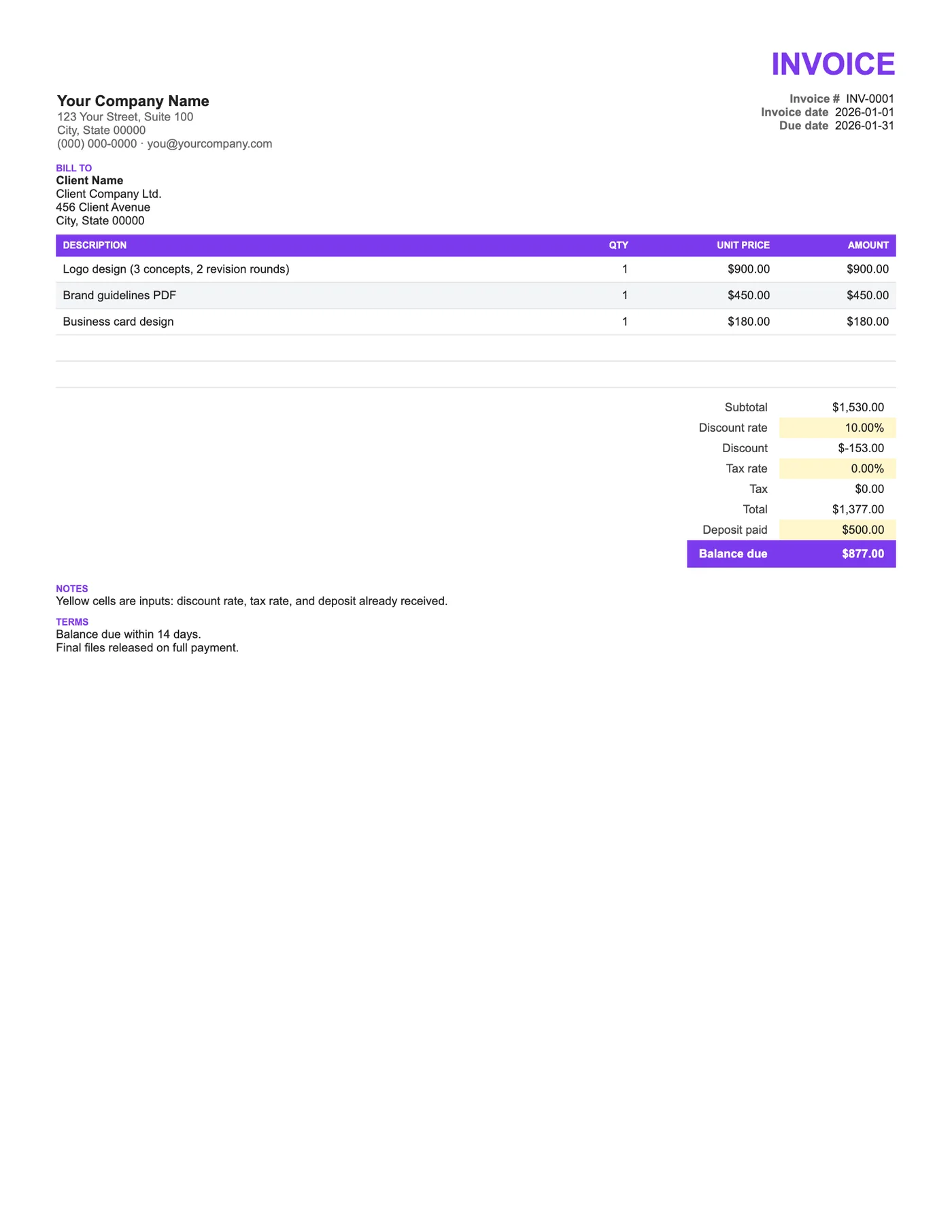
How to use it in Google Sheets
- 1
Click Open in Google Sheets. If asked, sign in; Google places a copy in your Drive.
- 2
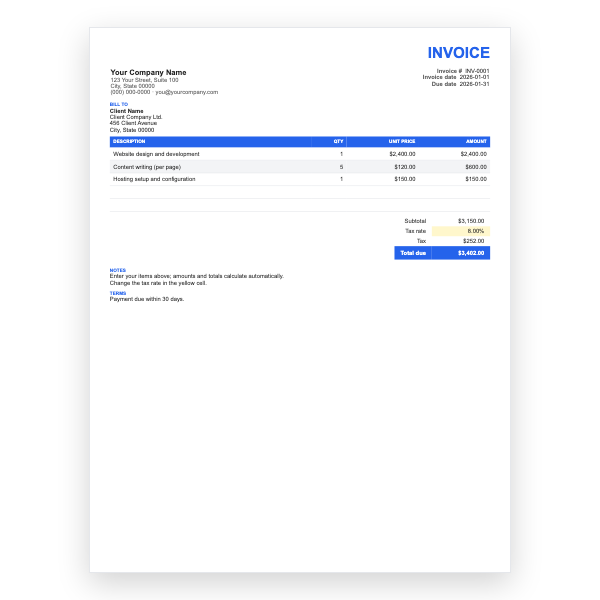
Fill in the yellow cells only: your details, the client, and each line item.
- 3
Type your tax rate in the rate cell. Amounts, subtotal, tax, and total update on their own.
- 4
To add lines, insert rows inside the item block so the totals keep including them.
- 5
Check the figures once, then choose File, Download, PDF and select Fit to width.
- 6
Send the PDF. Duplicate the tab for your next invoice.
The order of operations
Discount is applied to the subtotal first, then tax is calculated on the discounted figure, then the deposit is subtracted. That is the order most tax authorities expect and the one clients find easiest to follow. All three steps are visible on the invoice, so there is nothing to explain.
Deposits done right
Record the deposit on the final invoice exactly as it was received, and reference the deposit invoice or receipt number in Notes. If there was no discount, set the rate to 0% and the Discount row shows zero without disturbing the layout.
Tips
- Issue a separate deposit invoice at the start of the project and refer to it here.
- Type the discount as a percentage; for a fixed amount, overwrite the Discount cell.
- Keep the deposit cell yellow so you remember to fill it in.
Questions about this template
Can I give a fixed discount instead of a percentage?
Yes. Type the amount as a negative number directly into the Discount cell, replacing the formula.
What if the deposit exceeds the total?
Balance due goes negative, showing a refund is due. Add a note explaining how it will be returned.
Is tax charged before or after the discount?
After. Tax is calculated on the discounted subtotal, which is the usual rule.