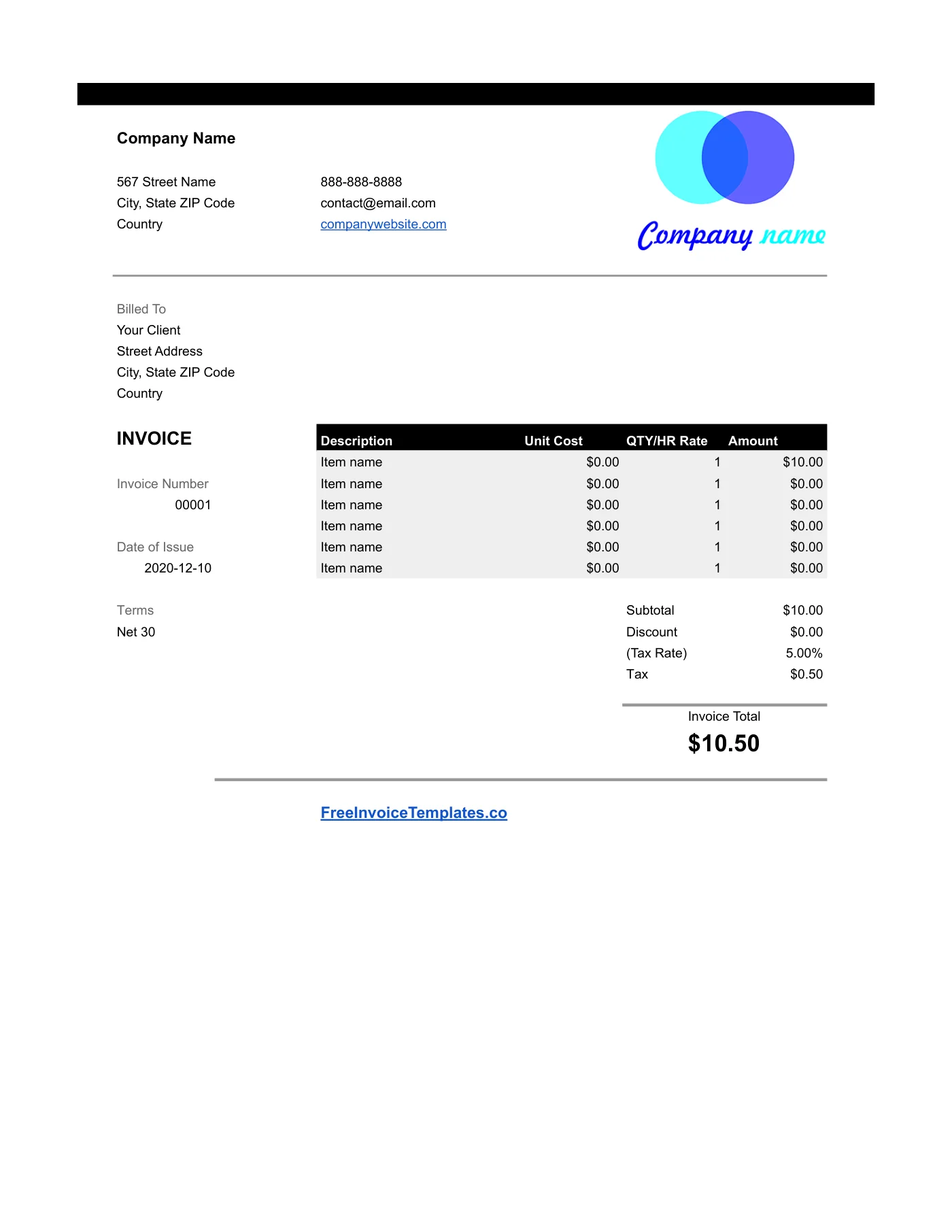
How to use it in Google Sheets
- 1
Click Open in Google Sheets. If asked, sign in; Google places a copy in your Drive.
- 2
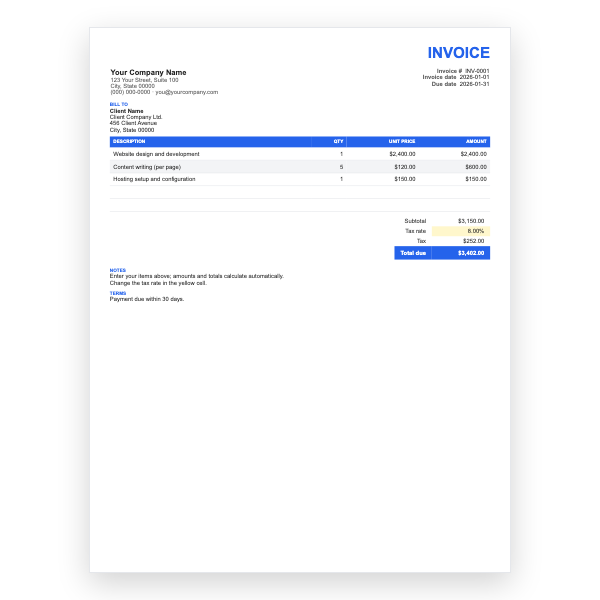
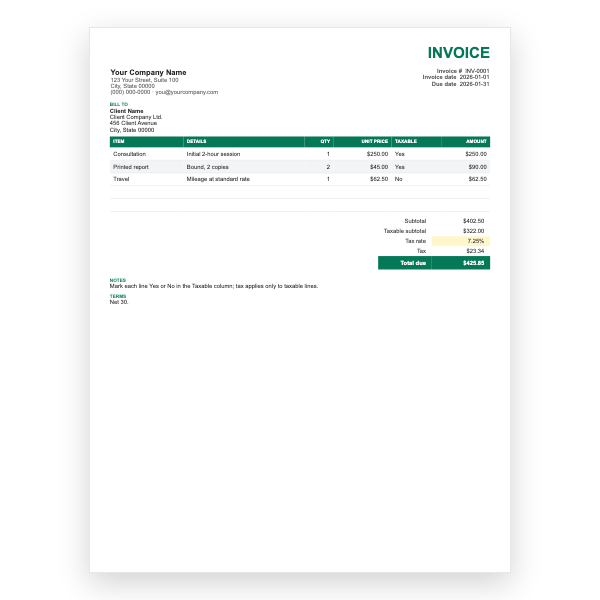
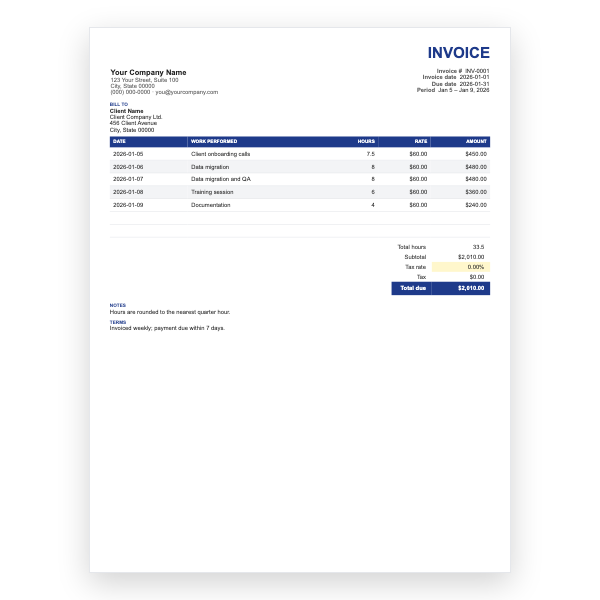
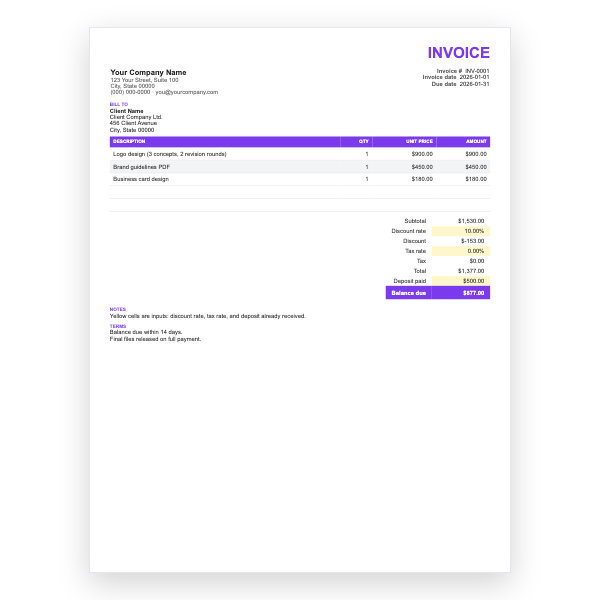
Fill in the yellow cells only: your details, the client, and each line item.
- 3
Type your tax rate in the rate cell. Amounts, subtotal, tax, and total update on their own.
- 4
To add lines, insert rows inside the item block so the totals keep including them.
- 5
Check the figures once, then choose File, Download, PDF and select Fit to width.
- 6
Send the PDF. Duplicate the tab for your next invoice.
Formulas you never have to touch
Every Amount cell multiplies its row’s Unit Cost by the Qty or Hr Rate. Subtotal sums those amounts, Tax applies the rate you type in the Tax Rate cell, and Invoice Total adds everything together. If a figure ever looks wrong, the cause is almost always text typed into a number cell.
From sheet to sent invoice
When the numbers are right, choose File, Download, PDF and check Fit to width and Portrait in the export dialog. The print area is already set, so the PDF shows just the invoice with no gridlines. Sharing the Sheet itself is not recommended because the client could change the figures.
Tips
- Insert new item rows between existing ones so the Subtotal range expands automatically.
- Duplicate the tab for each new invoice and rename it with the invoice number.
- Add a Payments tab if you want to track what has been paid; our Payment Tracker template shows how.
Questions about this template
Can I open it in Excel?
Yes. Choose File, Download, Microsoft Excel from your copy. The formulas carry over without changes.
How do I change the currency?
Select the money cells, open Format, Number, Custom currency, and pick your symbol. The formulas are unaffected.
Why is the total not updating?
Check that the quantity and unit cost cells contain numbers only. A currency symbol or a space turns a cell into text and the formula skips it.