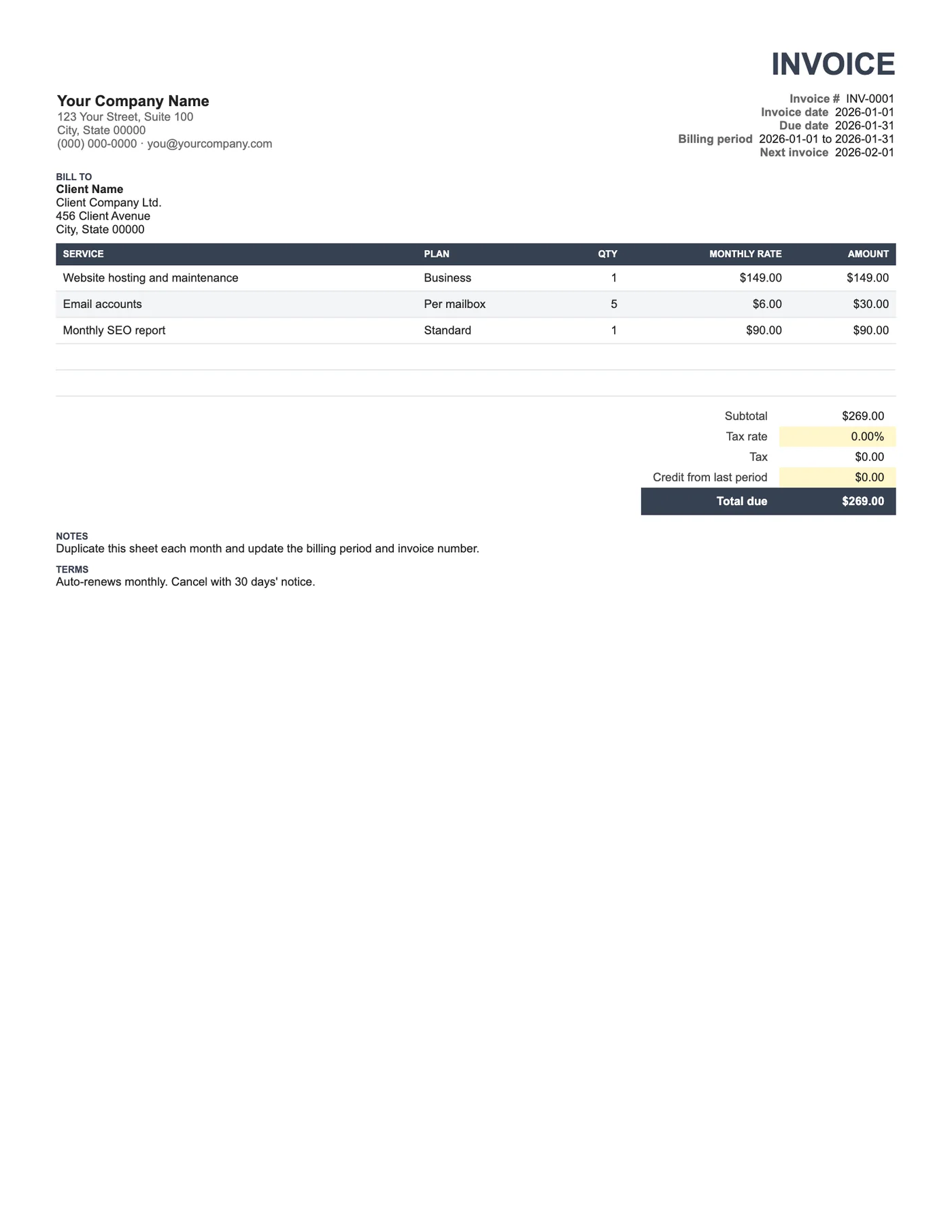
How to use it in Google Sheets
- 1
Click Open in Google Sheets. If asked, sign in; Google places a copy in your Drive.
- 2
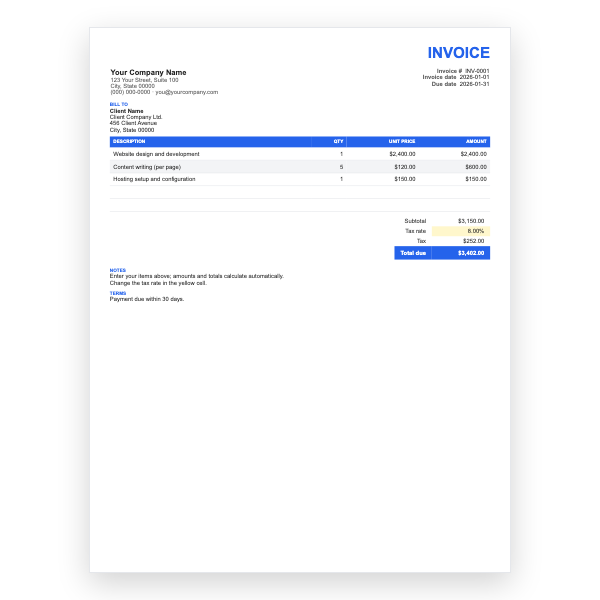
Fill in the yellow cells only: your details, the client, and each line item.
- 3
Type your tax rate in the rate cell. Amounts, subtotal, tax, and total update on their own.
- 4
To add lines, insert rows inside the item block so the totals keep including them.
- 5
Check the figures once, then choose File, Download, PDF and select Fit to width.
- 6
Send the PDF. Duplicate the tab for your next invoice.
Set up once, send every month
Fill in the plan lines once. Each month, duplicate the tab, change the invoice number, the billing period, and the next invoice date, and send. The Plan column names the tier or package so the client sees what they are subscribed to without reading the description.
Credits and adjustments
Service credits, overpayments, and goodwill gestures go in the Credit from last period cell, which is subtracted from the total. Keeping them in one place avoids negative line items and makes the monthly amount easy to compare across invoices.
Tips
- Number recurring invoices with the client code and the period, for example ACME-2026-03.
- Put the renewal or cancellation terms in Notes.
- Tell clients the next invoice date; it reduces how many query their bank statement.
Questions about this template
Can I bill quarterly instead?
Yes. Rename Monthly rate to Quarterly rate and set the billing period to three months.
How do I add a one-off item to a monthly invoice?
Insert a row inside the item block, set Plan to One-off, and enter the amount as the rate with a quantity of 1.
Can the sheet send the invoice automatically?
Not by itself. Google Apps Script can email a PDF on a schedule, or an invoicing service can automate the whole process.