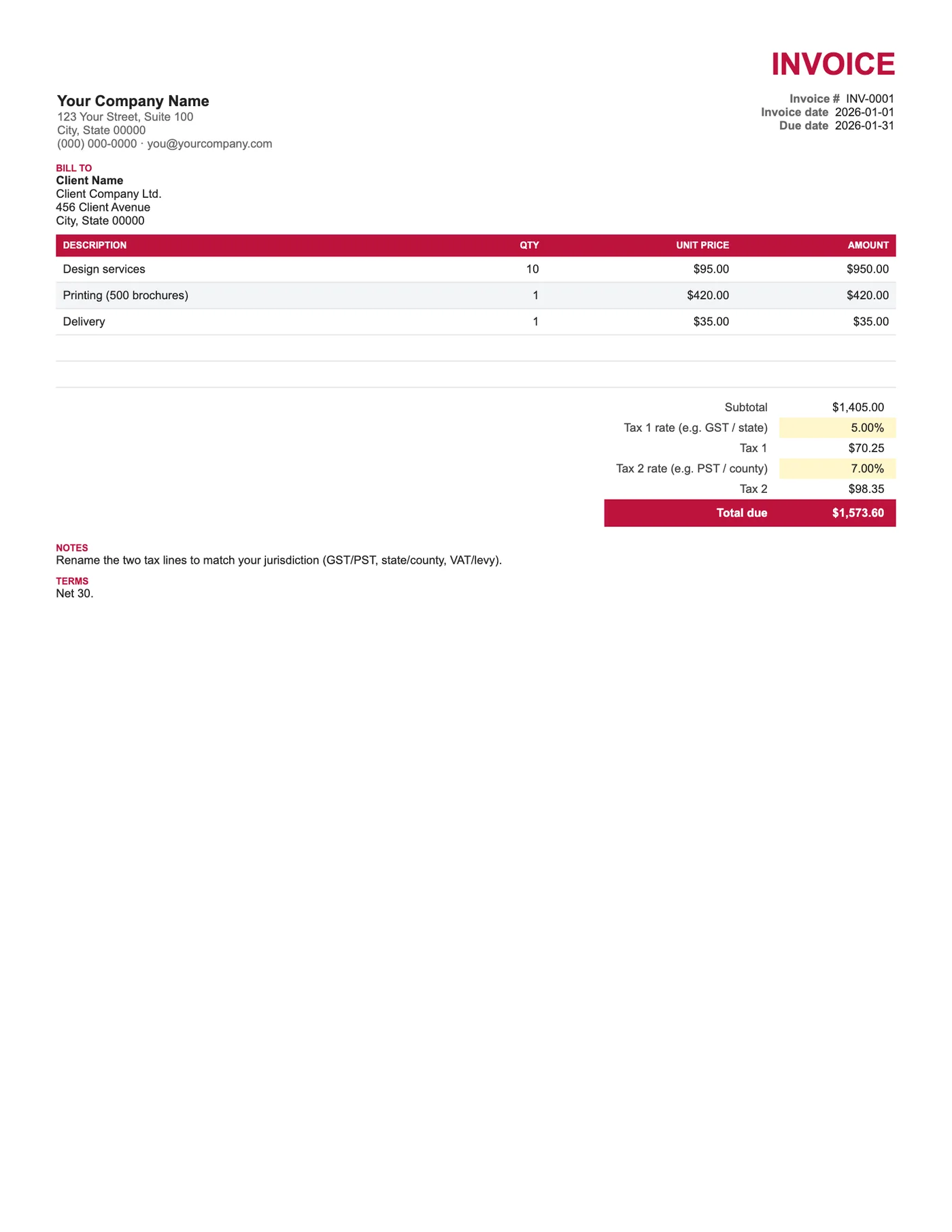
How to use it in Google Sheets
- 1
Click Open in Google Sheets. If asked, sign in; Google places a copy in your Drive.
- 2
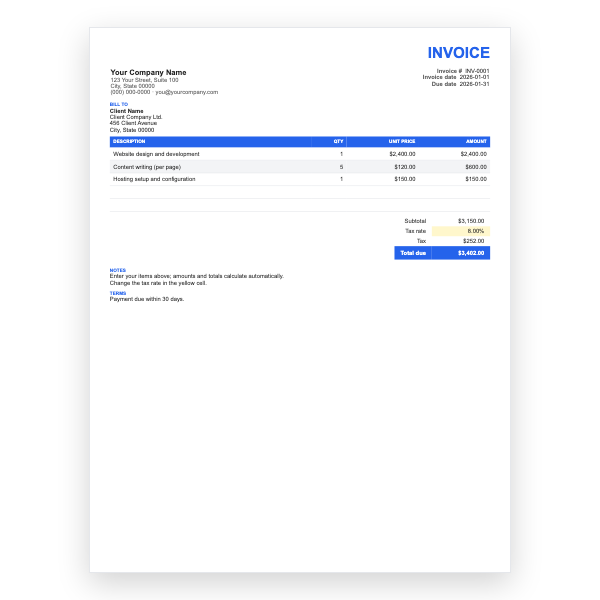
Fill in the yellow cells only: your details, the client, and each line item.
- 3
Type your tax rate in the rate cell. Amounts, subtotal, tax, and total update on their own.
- 4
To add lines, insert rows inside the item block so the totals keep including them.
- 5
Check the figures once, then choose File, Download, PDF and select Fit to width.
- 6
Send the PDF. Duplicate the tab for your next invoice.
Why two separate lines
Tax authorities that levy more than one tax generally require each to be shown with its own rate and amount. Rolling them into one line is a common reason an invoice is rejected by a client’s bookkeeper. Here each tax is calculated independently on the subtotal and labelled so you can rename it to GST, PST, HST, VAT, or whatever applies.
Registration numbers
If you are registered for both taxes, both numbers usually have to appear on the invoice. The header has room for them. If one tax does not apply to a particular client, set its rate to 0% and the line shows zero.
Tips
- Rename the Tax 1 and Tax 2 labels to the names your clients expect.
- Check whether one tax should compound on the other in your region; by default they do not.
- Keep the rates current; provincial and local rates change.
Questions about this template
Can I make the second tax compound on the first?
Yes. Edit the Tax 2 formula to multiply its rate by the subtotal plus Tax 1 instead of the subtotal alone.
What if some items are exempt from one tax?
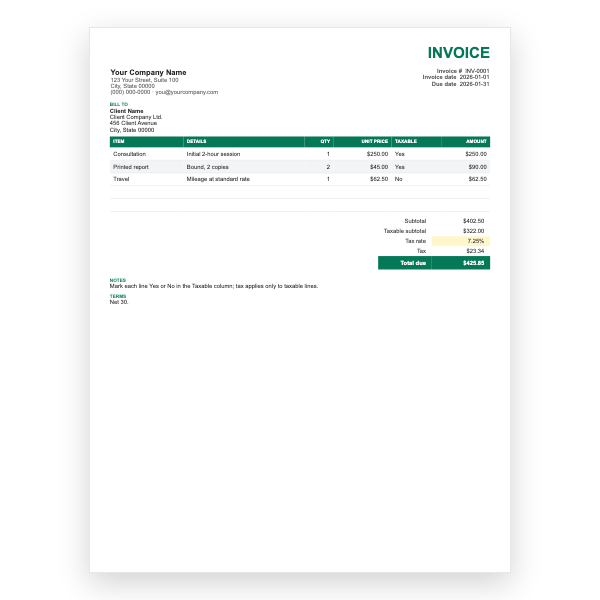
Combine this approach with a Taxable column as in our Itemized template, or split the invoice.
Does it work for VAT plus a levy?
Yes. Any two percentages applied to the subtotal work, whatever they are called.