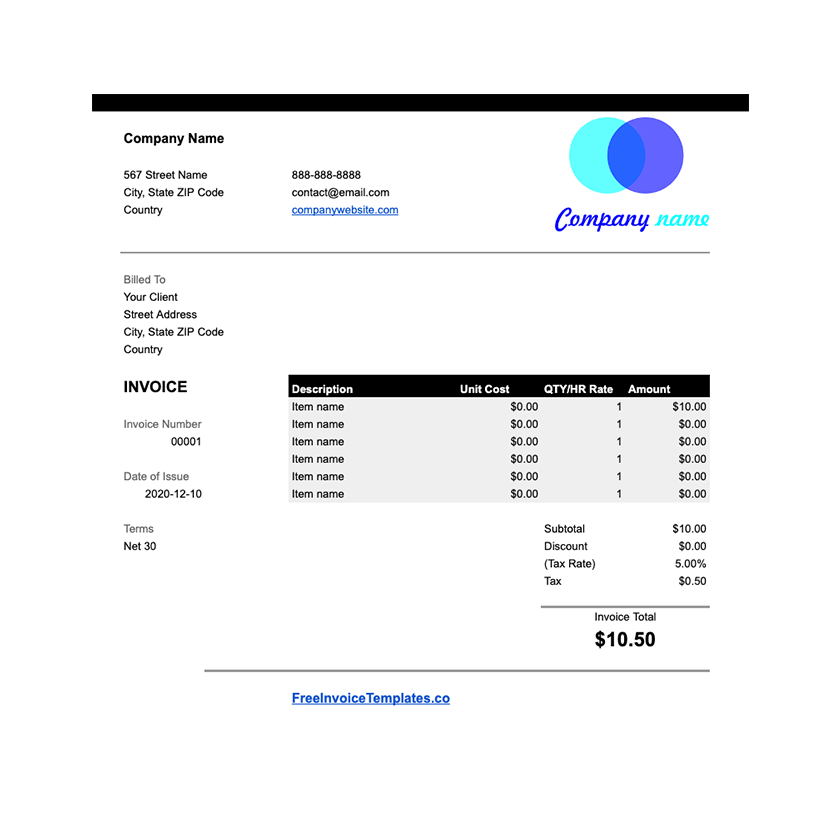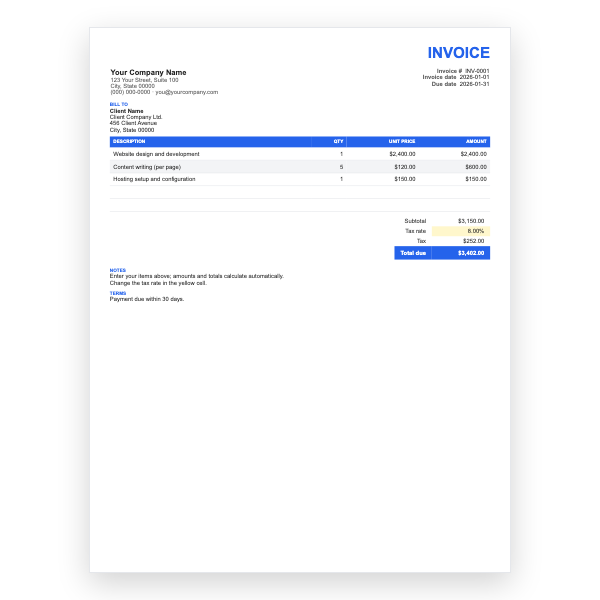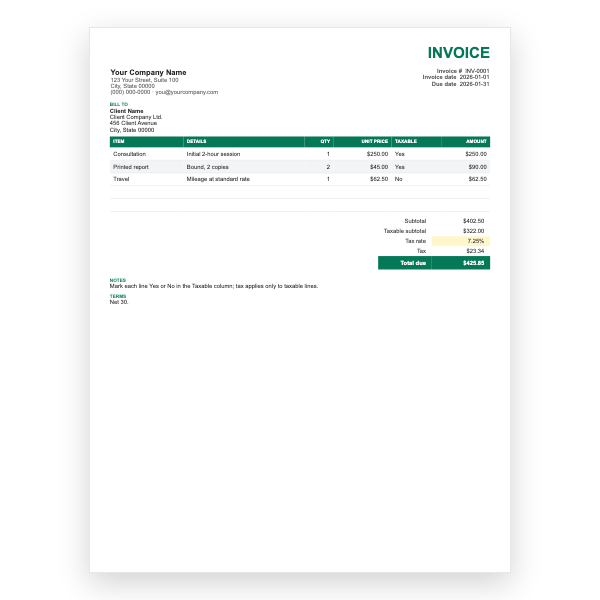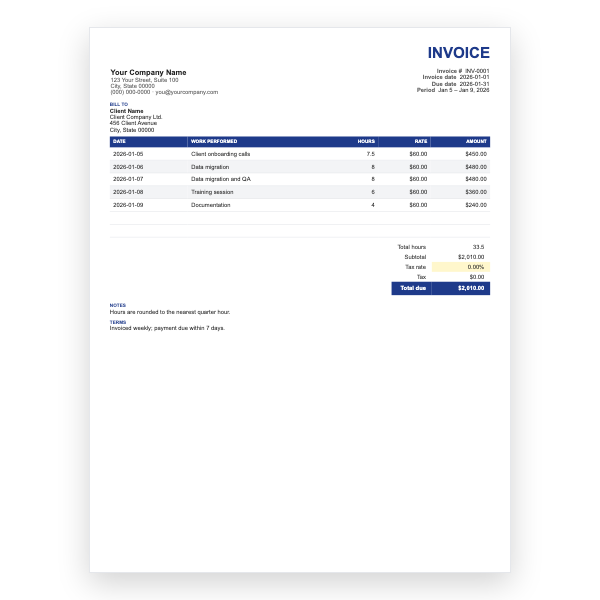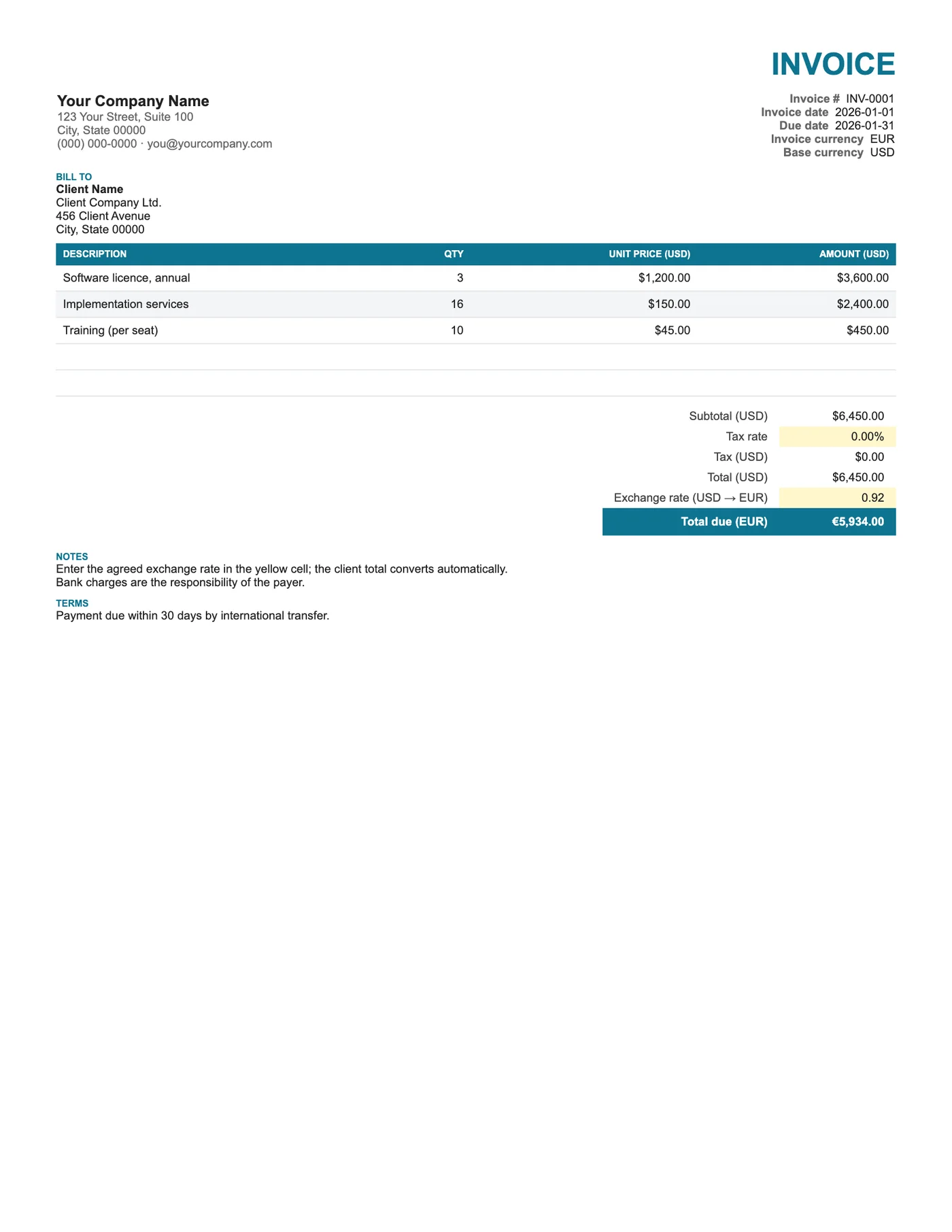
How to use it in Google Sheets
- 1
Click Open in Google Sheets. If asked, sign in; Google places a copy in your Drive.
- 2
Fill in the yellow cells only: your details, the client, and each line item.
- 3
Type your tax rate in the rate cell. Amounts, subtotal, tax, and total update on their own.
- 4
To add lines, insert rows inside the item block so the totals keep including them.
- 5
Check the figures once, then choose File, Download, PDF and select Fit to width.
- 6
Send the PDF. Duplicate the tab for your next invoice.
Two currencies, one source of truth
Your prices stay in your base currency, so your records and your tax return are consistent. The exchange rate cell converts the total for the client, and the converted figure is what they pay. Both totals appear on the invoice, so there is no argument later about which rate was used.
Changing the currencies
The sample uses USD to EUR. To change either, select the money cells and set a different currency format, then update the labels. State the rate source and date in Notes, for example European Central Bank reference rate on the invoice date, so the client can verify it.
Tips
- Add a small buffer to the rate if your bank charges a conversion fee.
- Specify who bears bank charges; international transfers often lose money to intermediary fees.
- Ask to be paid into a multi-currency account to avoid double conversion.
Questions about this template
Can the sheet fetch live exchange rates?
Yes. Replace the rate cell with =GOOGLEFINANCE("CURRENCY:USDEUR") in Google Sheets. Fix the value before sending so the invoice does not change later.
Which currency should I charge tax in?
Tax is usually accounted for in your base currency. This template applies tax in USD before conversion.
Can I show three currencies?
Add another exchange rate cell and another converted total line below Total due.