How to use it in Google Docs
- 1
Click Open in Google Docs. If asked, sign in; Google places a copy in your Drive.
- 2
Rename the copy with the invoice number so you can find it later.
- 3
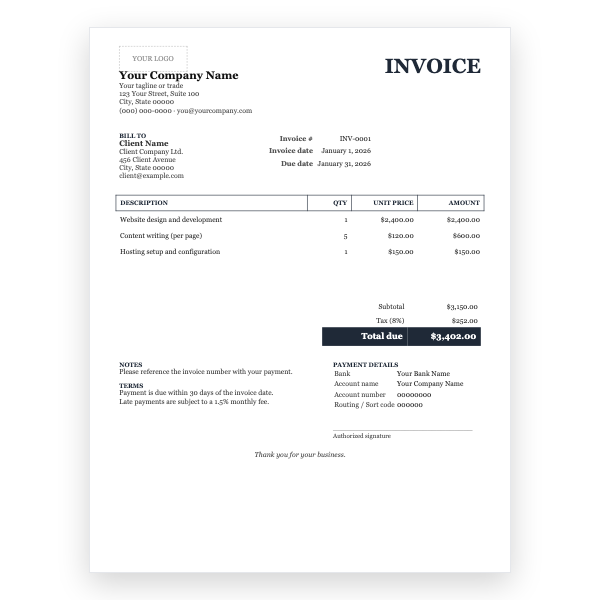
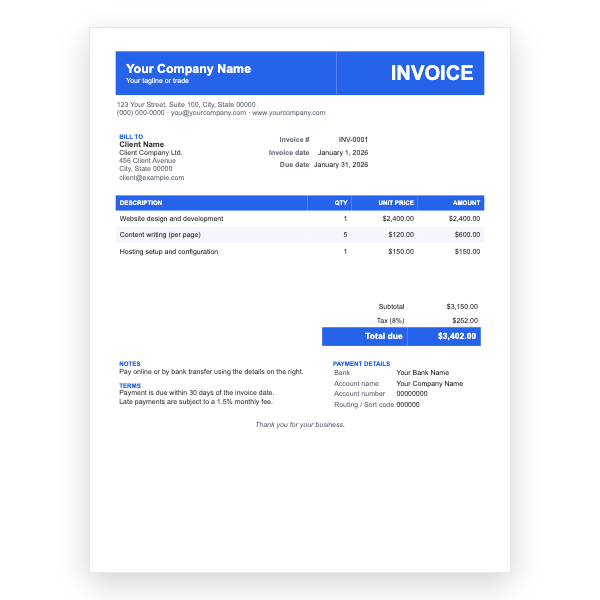
Replace the placeholder text with your details, the client’s, the invoice number, and the dates.
- 4
Type each line item. Right-click a row to insert or delete rows.
- 5
Add up the amounts and type the subtotal, tax, and total. Docs does not calculate.
- 6
Choose File, Download, PDF document and send the PDF.
The details a service customer looks for
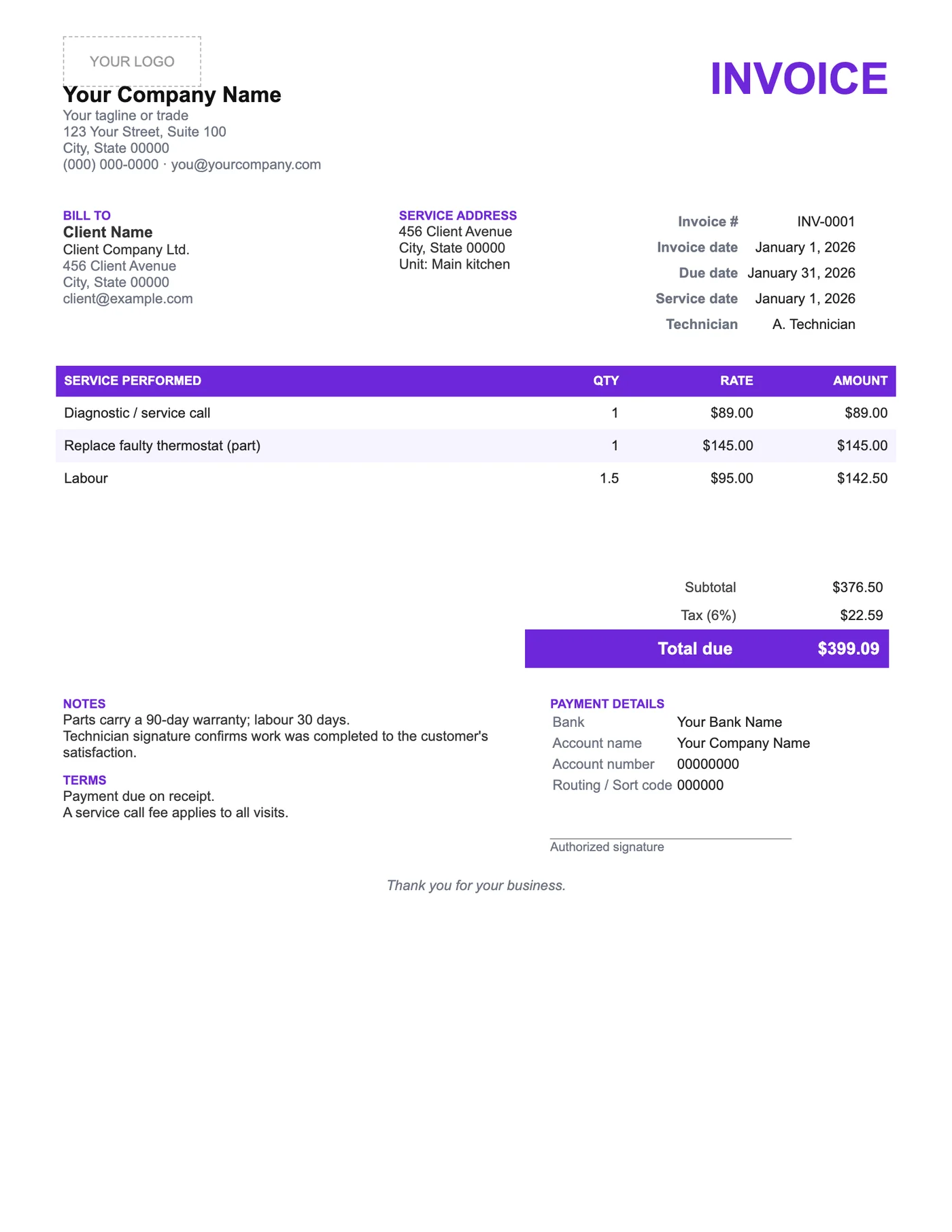
When a customer pulls out an old invoice it is to check who came, when, and what they did. The service date, technician, and address are therefore in the header, not buried in notes. The warranty line tells them whether a repeat fault is covered, which saves a phone call.
Parts and labour on one table
List each part with its quantity and price, then add labour as hours at your rate or as a flat service fee. If you charge a call-out fee, keep it as its own line so it is never mistaken for labour. The signature line lets the customer confirm the work on site.
Tips
- Fill in the invoice on a tablet at the customer’s door and email the PDF before you leave.
- Record serial numbers of replaced parts in the description for warranty claims.
- Keep the warranty periods accurate; they are a promise.
Questions about this template
Can I use this for recurring maintenance contracts?
Yes, but our Google Sheets Recurring Monthly template is better suited to a fixed monthly fee.
How do I get a customer signature?
Print the PDF and sign on paper, or open the Doc on a tablet and use Insert, Drawing to sign with a finger.
Can I remove the technician line?
Yes. Click into it and delete the text, or replace it with a job reference number.