How to use it in Google Docs
- 1
Click Open in Google Docs. If asked, sign in; Google places a copy in your Drive.
- 2
Rename the copy with the invoice number so you can find it later.
- 3
Replace the placeholder text with your details, the client’s, the invoice number, and the dates.
- 4
Type each line item. Right-click a row to insert or delete rows.
- 5
Add up the amounts and type the subtotal, tax, and total. Docs does not calculate.
- 6
Choose File, Download, PDF document and send the PDF.
A layout built for formality
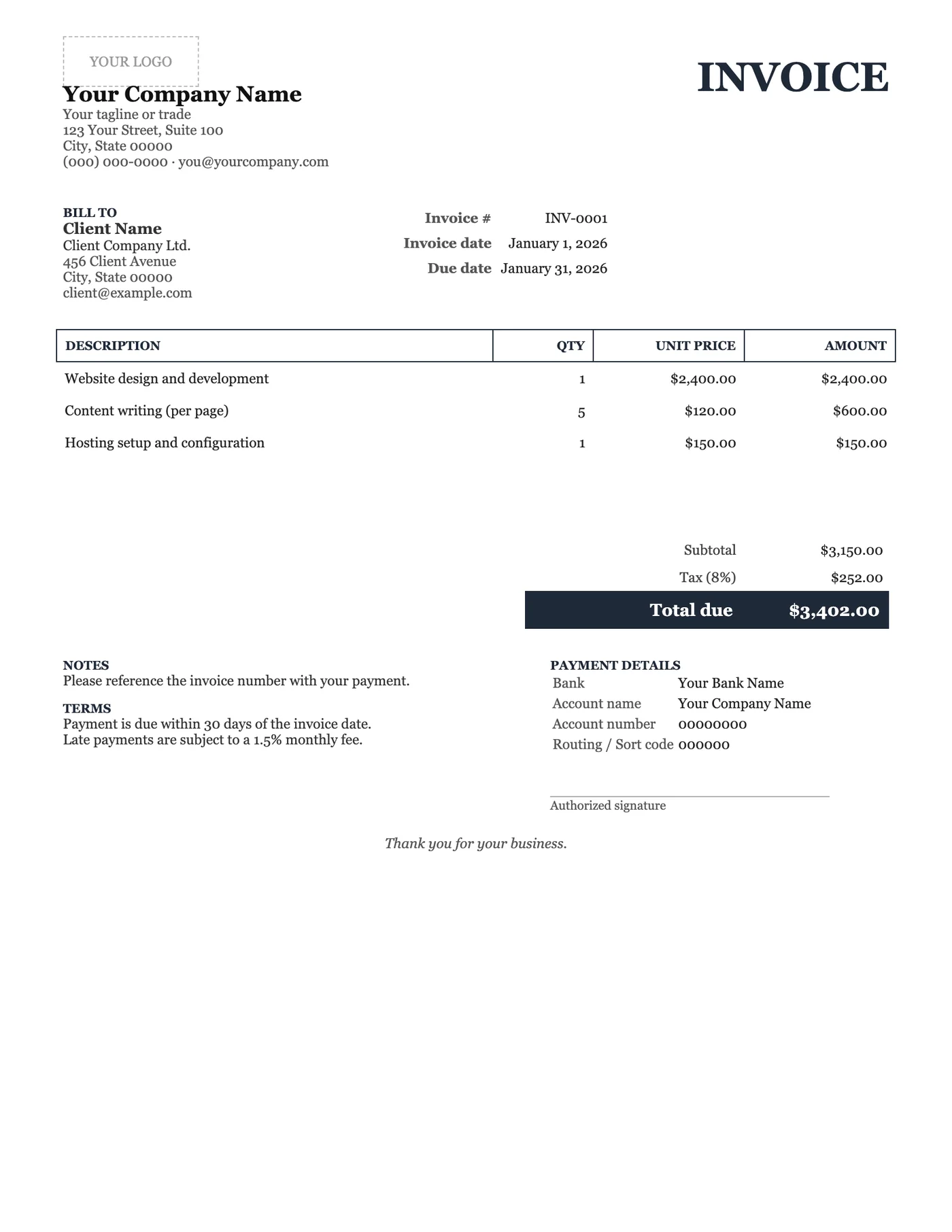
The classic template uses a serif face and generous margins, the conventions of a printed letterhead. The line-item table is ruled rather than shaded, so it photocopies and faxes cleanly. The signature line at the bottom gives the document a place to be countersigned, which some clients and auditors still expect.
Adapting it to your firm
Replace the placeholder name and address, then set the Terms block to your standard payment period. The bank details block is where most clients look first, so check the account numbers carefully. If you do not accept bank transfer, delete the block and put your payment instructions in Notes.
Tips
- Keep the serif typeface; switching to a sans serif undoes the point of this design.
- Right-click the signature line and add a scanned signature image if you countersign digitally.
- Use File, Download, PDF so the fonts are embedded for the recipient.
Questions about this template
Can I change the typeface?
Yes. Select all and choose any font from the toolbar. Georgia, Merriweather, and Playfair Display keep the formal feel.
Does the template calculate the total?
No. Google Docs does not do arithmetic. Type the amounts, subtotal, tax, and total yourself, or use one of our Google Sheets templates for automatic totals.
Can I add a purchase order number?
Yes. Click into the meta block beside the invoice number and add a PO number line.