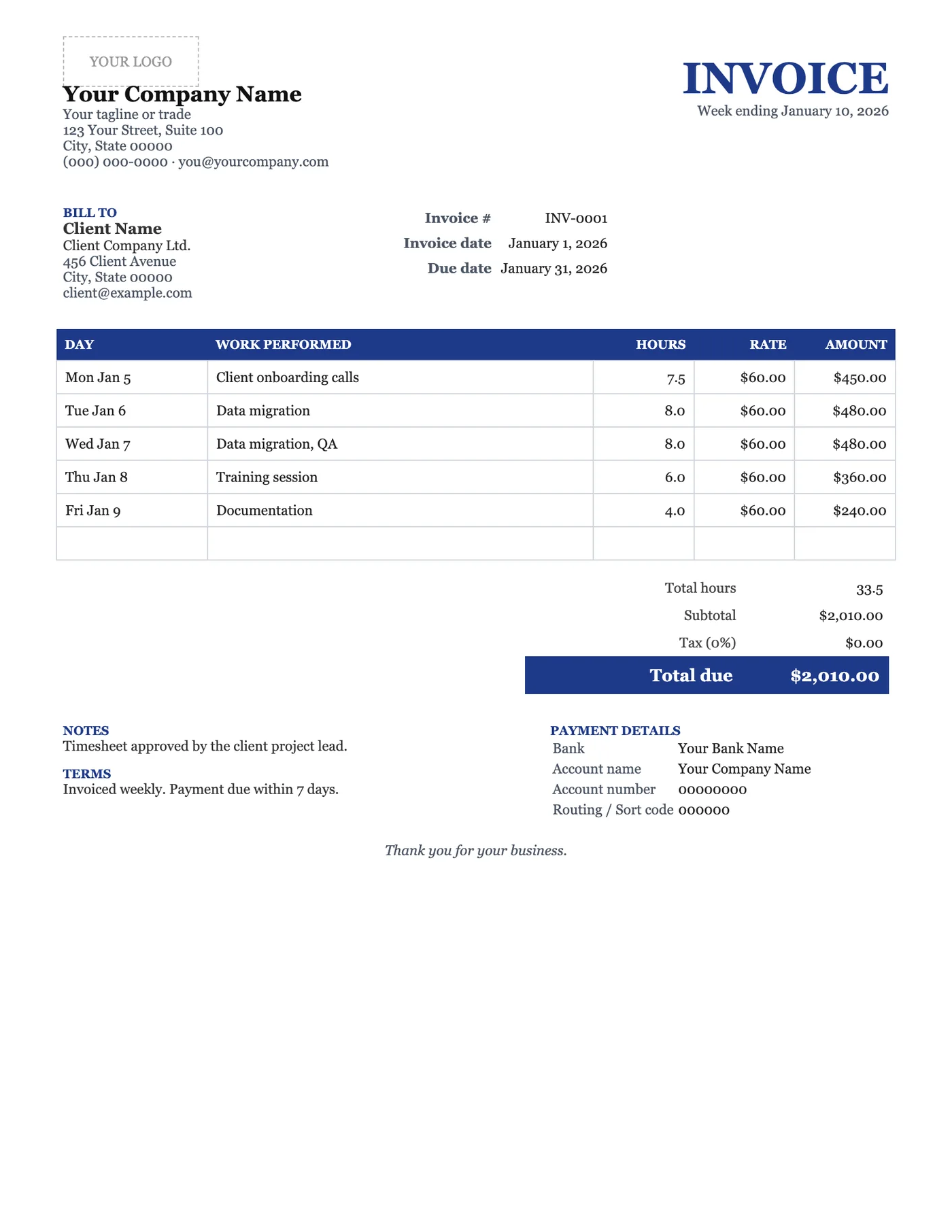
How to use it in Google Docs
- 1
Click Open in Google Docs. If asked, sign in; Google places a copy in your Drive.
- 2
Rename the copy with the invoice number so you can find it later.
- 3
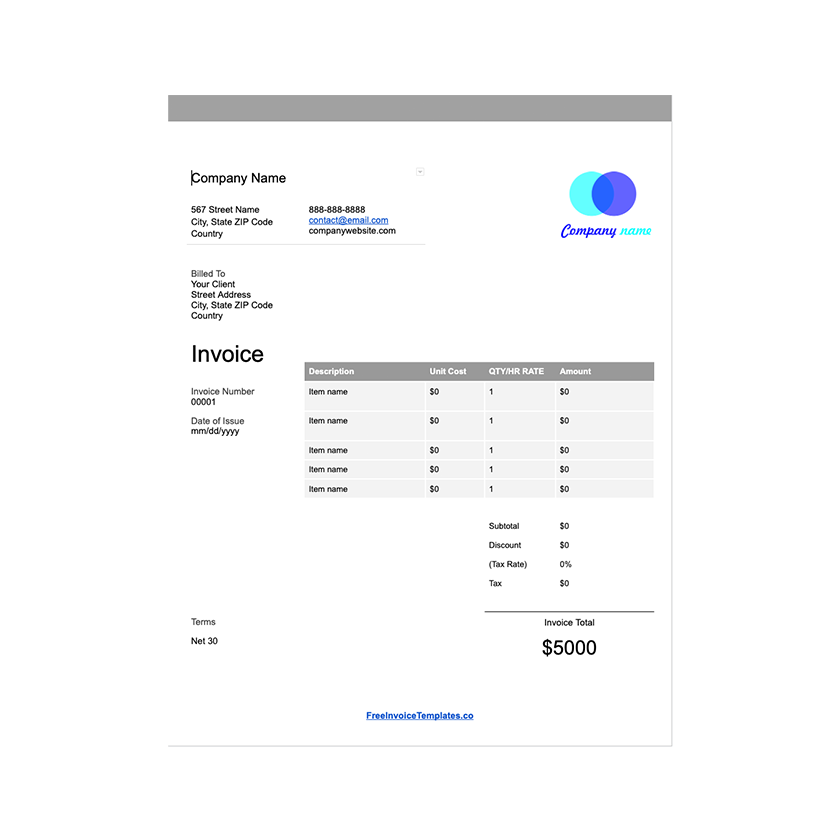
Replace the placeholder text with your details, the client’s, the invoice number, and the dates.
- 4
Type each line item. Right-click a row to insert or delete rows.
- 5
Add up the amounts and type the subtotal, tax, and total. Docs does not calculate.
- 6
Choose File, Download, PDF document and send the PDF.
Timesheet and invoice in one
Hourly workers often send a timesheet and then an invoice that repeats it. This template merges the two. Each day gets a line with a short note on what was done, the hours are totalled, and one rate turns them into the amount due. The client approves and pays from a single document.
Weekly rhythm
The terms default to weekly invoicing with payment within seven days because that is how most hourly arrangements run. If you are paid fortnightly, duplicate the table for the second week and change the terms. Keep the invoice number sequential across weeks.
Tips
- Write hours as decimals so the total is easy to check.
- Name the invoice with the week-ending date, for example Week ending 14 March.
- Ask the client to reply with approval before you send it to their accounts team.
Questions about this template
Can I have more than one rate?
Add a Rate column to the table and put the rate on each row, or use our Google Sheets Hourly template which supports a rate per line.
Does it total the hours?
No. Add them up and type the total. The Sheets version does it automatically.
How do I show overtime?
Add a line below the daily rows labelled Overtime with the extra hours and the overtime rate in the description.