How to use it in Google Docs
- 1
Click Open in Google Docs. If asked, sign in; Google places a copy in your Drive.
- 2
Rename the copy with the invoice number so you can find it later.
- 3
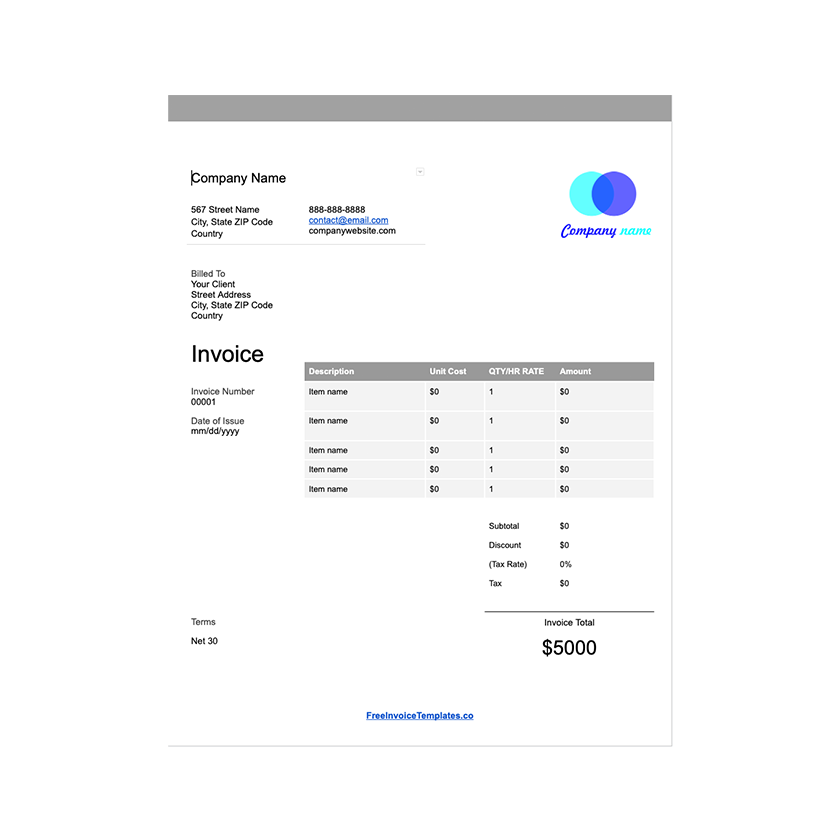
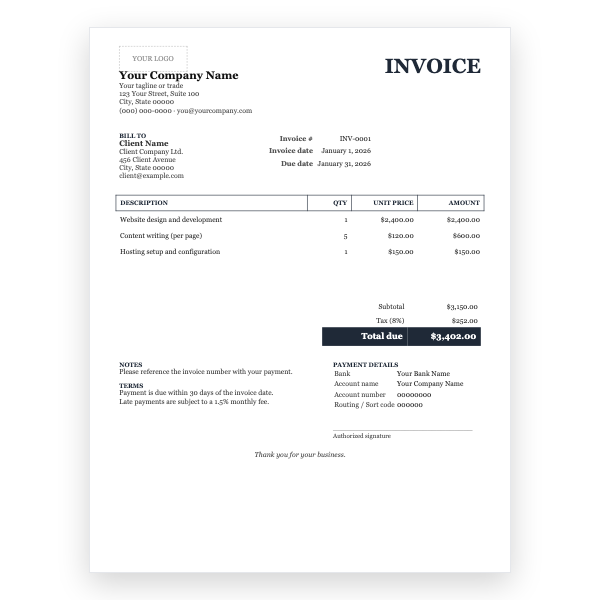
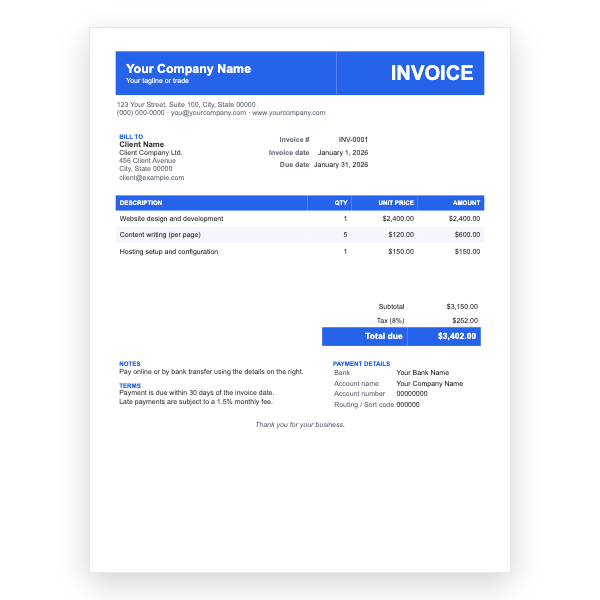
Replace the placeholder text with your details, the client’s, the invoice number, and the dates.
- 4
Type each line item. Right-click a row to insert or delete rows.
- 5
Add up the amounts and type the subtotal, tax, and total. Docs does not calculate.
- 6
Choose File, Download, PDF document and send the PDF.
Labour and materials, kept apart
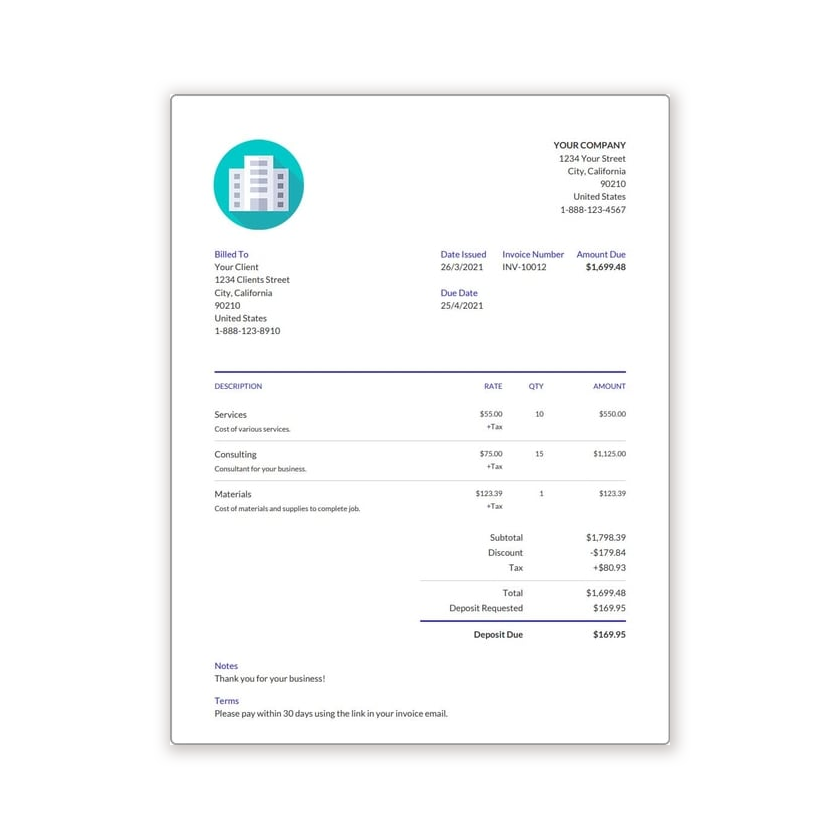
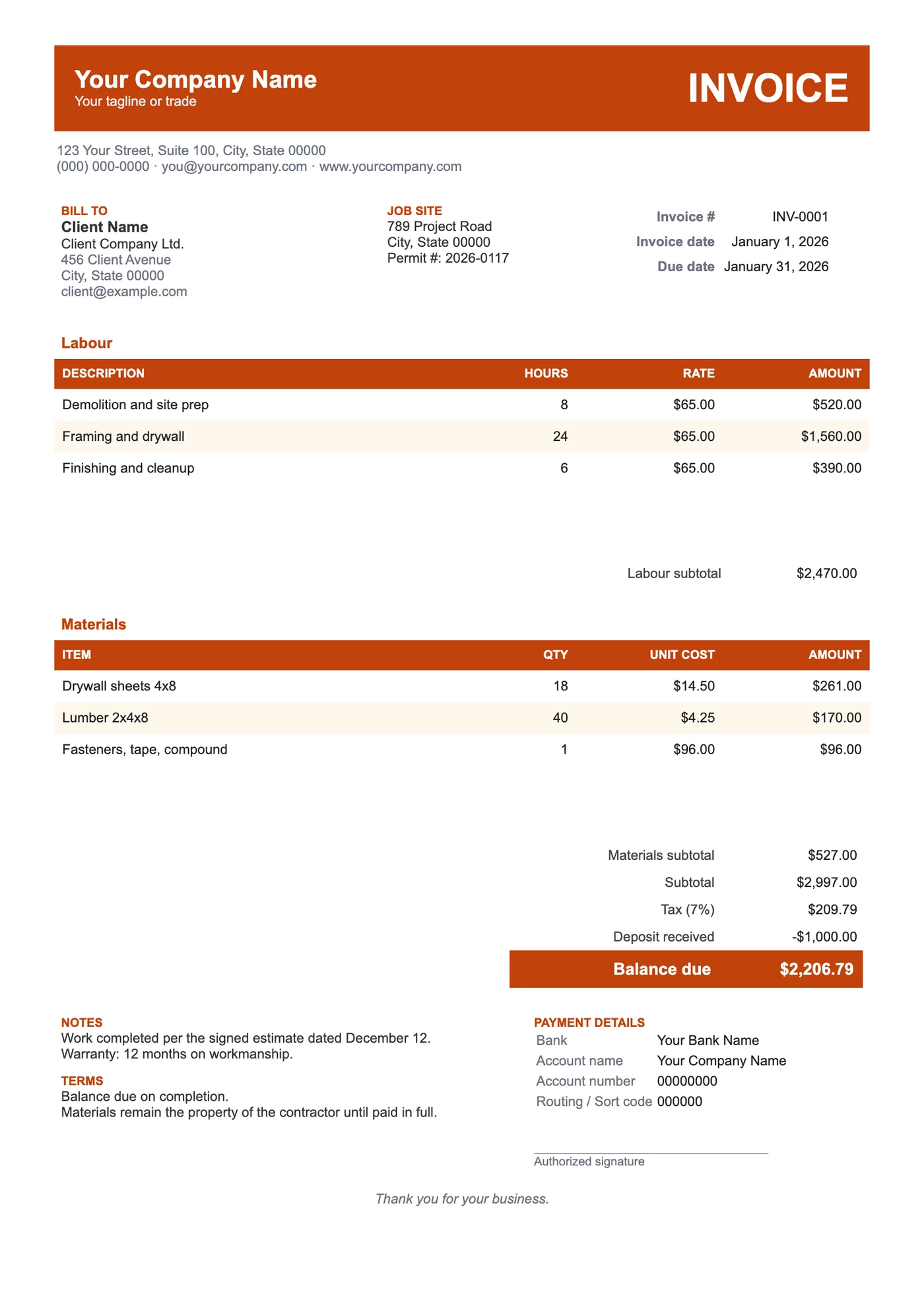
Clients want to see what they paid for work and what they paid for things. Two tables make that obvious and make the invoice easier to reconcile against the estimate. Materials can be listed at cost or with a markup, and the warranty note tells the client what is covered and for how long.
Deposits and the balance due
Most jobs start with a deposit. Enter it in the Deposit received row so the client sees that it has been credited, and the Balance due becomes the only number they need to pay. The signature line gives you a place for the client to confirm the work is complete.
Tips
- Reference the estimate or contract date in Notes so the invoice ties to the agreed scope.
- Photograph the finished work and attach it to the invoice email.
- Put your licence number in the header; many jurisdictions require it on invoices.
Questions about this template
Can I add a third table for subcontractors?
Yes. Copy the Materials table, paste it below, and rename the header to Subcontractors.
Does it work for progress billing?
Yes. Number the invoices by stage, carry the previous payments into the Deposit received row, and show the remaining balance.
Is there a version with automatic totals?
Our Google Sheets Contractor template has the same labour and materials sections with a markup percentage and formulas.