How to use it in Microsoft Excel
- 1
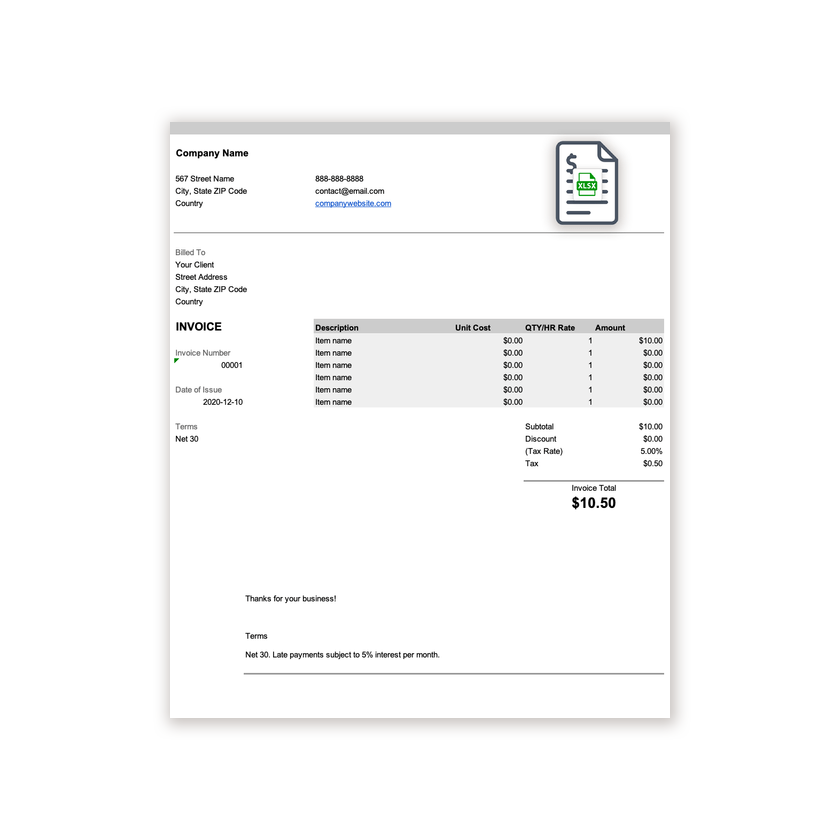
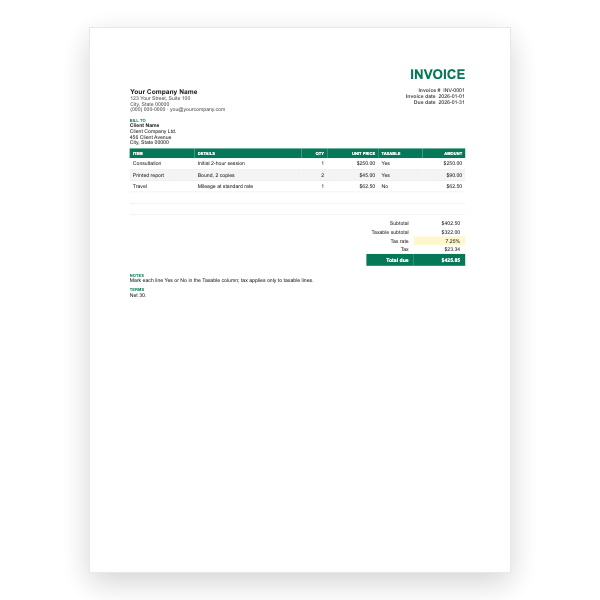
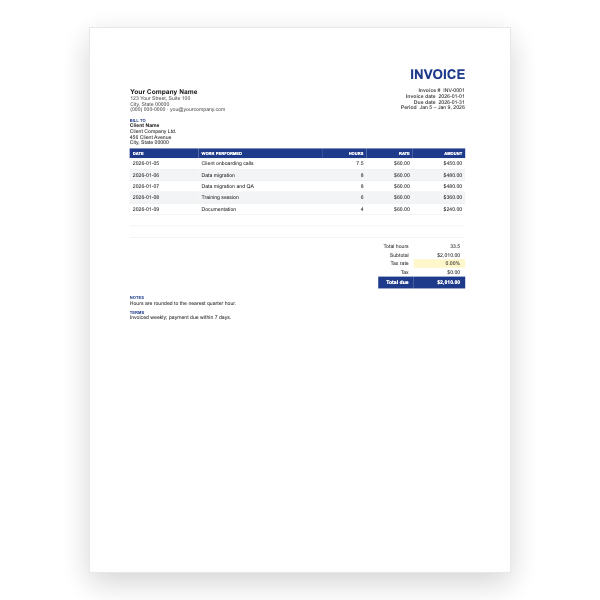
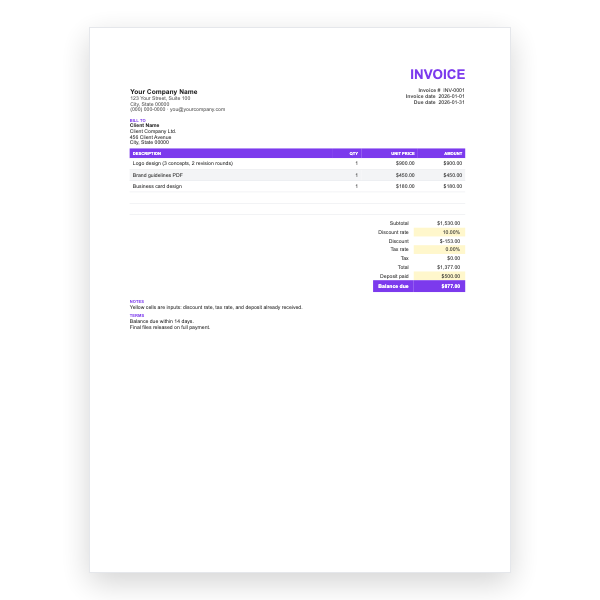
Download the .xlsx file and open it in Excel. Click Enable Editing if Excel asks.
- 2
Type your business details and the client’s into the header cells.
- 3
Enter a description, unit cost, and quantity on each row. The Amount column fills itself in.
- 4
Type your tax rate in the Tax Rate cell. Subtotal, Tax, and Invoice Total update automatically.
- 5
Insert extra rows inside the item block if you need them, then copy an Amount formula down.
- 6
Choose File, Save As, PDF to create the copy you send.
Two sections, one total
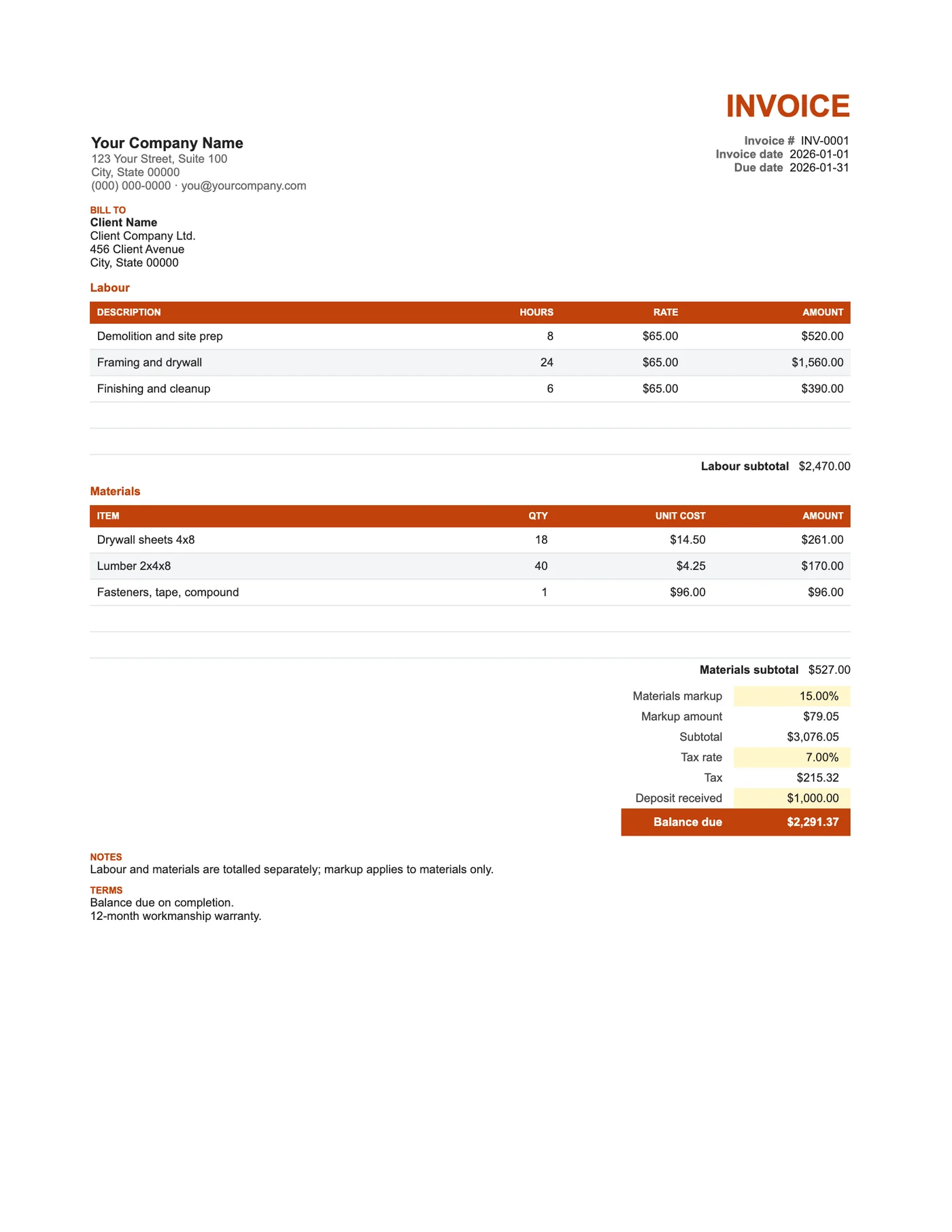
The labour section totals hours times rate; the materials section totals quantity times unit cost. A markup percentage is applied to materials only and shown on its own row. Subtotal adds labour, materials, and markup; tax applies to the lot; the deposit comes off at the end.
Markup in the open
Showing the markup as a line rather than hiding it in unit costs builds trust and keeps your material costs honest against supplier receipts. If you would rather not show it, set the percentage to zero and price materials at your selling price.
Tips
- Attach supplier receipts for materials when a client asks.
- Reference the signed estimate in Notes.
- Insert rows inside each section so its subtotal keeps including them.
Questions about this template
Can I add a subcontractor section?
Yes. Copy the Materials section, paste it below, and add its subtotal into the Subtotal formula.
Should tax apply to materials I already paid tax on?
Rules differ by region. Many contractors charge tax on the full invoice and reclaim input tax; check with your accountant.
Is there a Word version?
Yes, the Contractor Word Invoice has the same sections with typed totals.