How to use it in Google Docs
- 1
Click Open in Google Docs. If asked, sign in; Google places a copy in your Drive.
- 2
Rename the copy with the invoice number so you can find it later.
- 3
Replace the placeholder text with your details, the client’s, the invoice number, and the dates.
- 4
Type each line item. Right-click a row to insert or delete rows.
- 5
Add up the amounts and type the subtotal, tax, and total. Docs does not calculate.
- 6
Choose File, Download, PDF document and send the PDF.
What a blank invoice still has to include
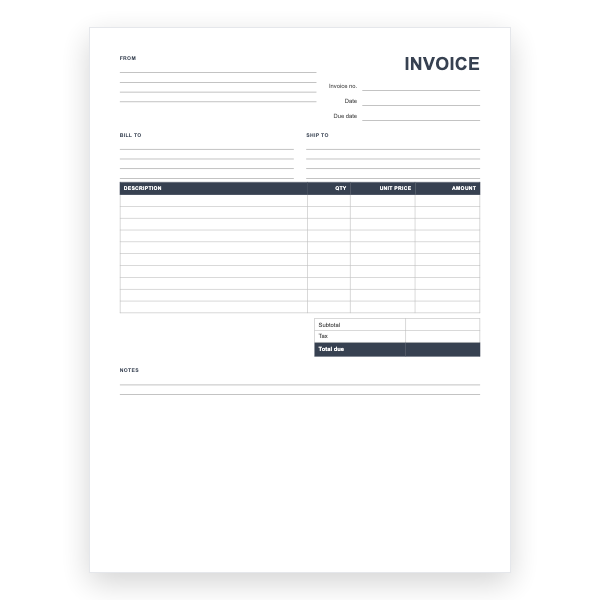
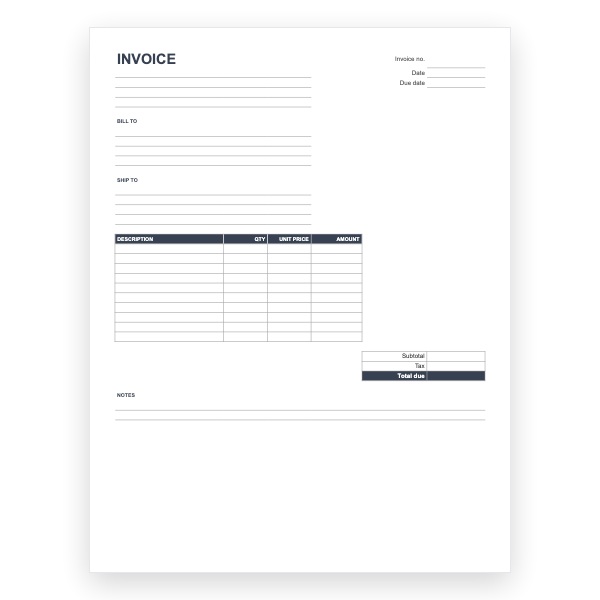
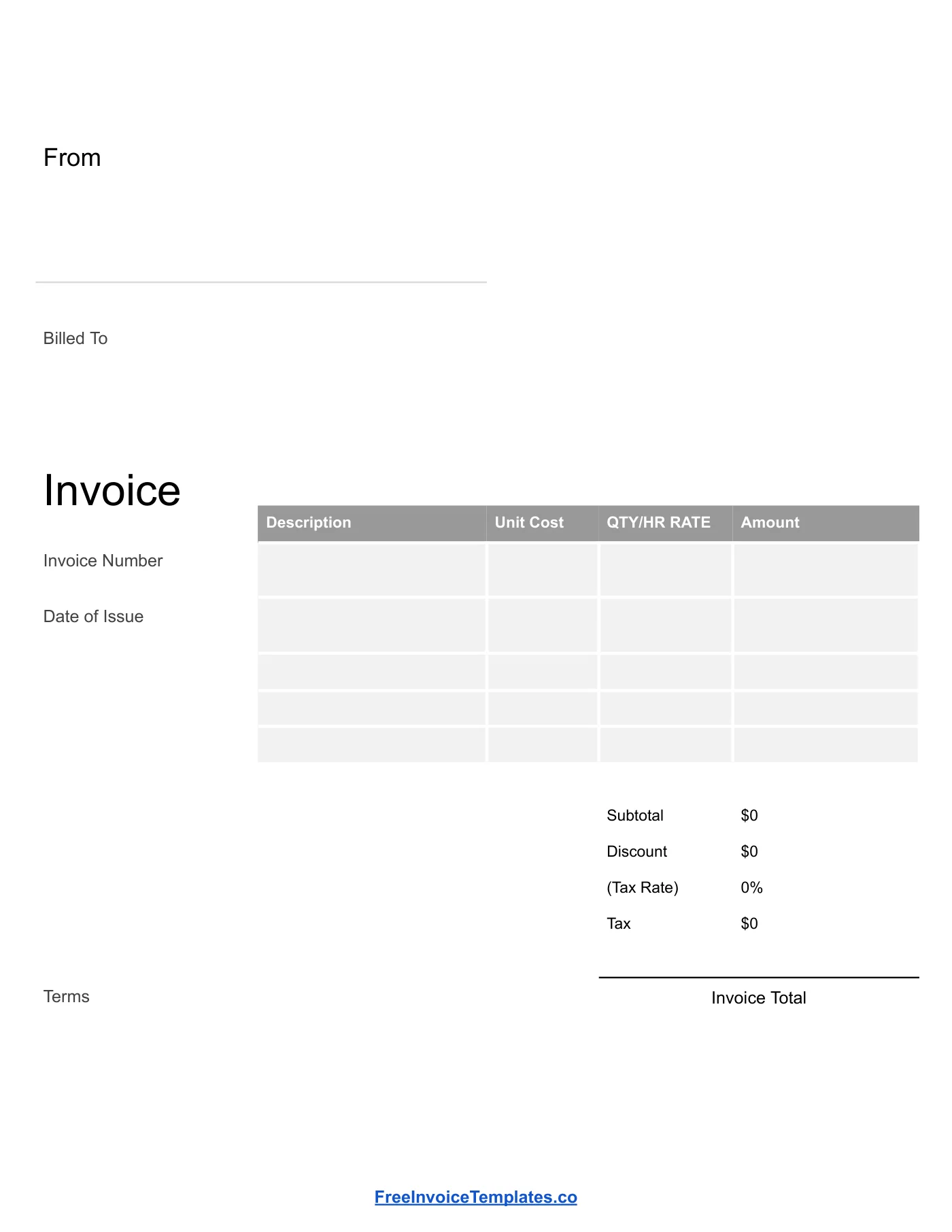
Blank does not mean incomplete. To be valid almost everywhere an invoice needs both parties, a date, a unique number, a description of the goods or services, and the amount due. Every one of those has a labelled space on this page, so a handwritten copy is as valid as a printed one as long as you fill them all in.
Printing in quantity
Download the copy as a PDF and print as many as you need, or have a print shop pad them. If you want a duplicate for the customer, print on carbonless paper or photograph each finished invoice before you hand it over.
Tips
- Write the invoice number first, from a running list, so no two jobs share one.
- Use a pen that will not smudge and press firmly if you are using carbonless sets.
- Keep every completed invoice; tax authorities usually expect several years of records.
Questions about this template
Is a handwritten invoice legally valid?
In most places, yes, provided it carries the required details: both parties, a date, a unique number, a description, and the amount. Check local tax rules for anything extra such as a registration number.
Can I add a logo later?
Yes. Open the Google Docs copy, click at the top of the page, and insert an image. The grey header band is a good spot for it.
Is there a PDF version?
Make a copy in Google Docs and choose File, Download, PDF. The PDF prints on both A4 and US Letter.